Category: Resource Filled

  • Making a Ready Defense by Planning for Failure

    Originally published May 2, 2008, made some formatting adjustments, and bumped this up.

    Bad church web design poster 0008 - contingency planningThose who fail to plan, plan to fail. While this aphorism is very worn, it is also very true. Here are some simple things you can do with mysqldump, crontab, tar/gzip and a little contingency planning to insure you don’t lose your sanity when your server crashes upon the shoals of of virtual disaster.

    Check out these recent tales of real-life virtual horror as told by a variety of news sources from around the globe:

    • The outgoing Italian government posted the entire population’s tax returns on the internet causing a mad scramble which crashed the system.
    • Obama supporters were in for a surprise Monday when an attacker executed code on Barack Obama’s Presidential campaign Website that redirected users to Democratic rival Hillary Clinton’s campaign site.
    • According to police reports, a computer was stolen from the ADT Home Security branch on Sunbeam Center Drive sometime between April 12th and April 13th.
    • Tens of thousands of people were feeling short changed last night after a massive system failure wiped out all the Northern Bank’s ATMs.
    • A statewide computer problem again hobbled the state’s digital driver license system on Friday.

    The point is, hardware failures, power outages, software bugs, stolen computers, cross site scripted SQL injections, and/or zombie induced denial of service attacks can all turn your church and/or charity website into a tub of techno-mush quicker than you can recurse a binary tree.

    The only real defense against such failures is to plan for them – anticipating them in three ways:

    • backing up your data
    • moving your backed-up data off site
    • having and practicing how to restore backed-up data

    Here’s a very simple snippet from an oldie but goldie article entitled “How to backup your MySQL tables and data every night using a bash script and cron:”

    #!/bin/sh
    # backup data
    mysqldump -uroot -ppwd --opt db1 > /sqldata/db1.sql
    mysqldump -uroot -ppwd --opt db2 > /sqldata/db2.sql
    # zip up data
    cd /sqldata/ 
    tar -zcvf sqldata.tgz *.sql
    # email data off-site
    cd /scripts/
    perl emailsql.cgi
    

    The article also displays a script on how to email the data off site, not a bad deal if your data is small – such backups being just as simple to restore with this dynamic command line duo of directives:

    tar -zxvf sqldata.tgz
    mysql -uroot -ppwd db1 < db1.sql
    

    Things get trickier when you have tons of data, in which it may play into one’s restoration plan better to backup and restore a database by individual tables. Here is a set of articles that describes how to do this that includes some script examples you can modify to suite your needs:

    Either way, then it is just a manner of putting the shell script on a timer, or in the vernacular of crontab:

    1 3 * * * /usr/home/mysite.com/prvt/tbak.sh > /usr/home/logs/tbak.log

    If either of these shell script, bash-based approach seems to complex then perhaps one of the control panel, web-based method offered by UpStartBlogger’s post “8 MySQL Backup Strategies for WordPress Bloggers (And Others)” will do the trick.

    Here are some other related articles that might help, the last two include automagic date stamping of the backup files:

    The bottom line is this: just Peter implores us to make a ready defense in 1 Peter 3:15, so I’m asking you always be ready to make a defense to anything that endangers the data that is on your system so you’re not found tearfully dissheveled cowering in a corner meek and fearful, mumbling something about how you should have planned for such failures.

    You’ll be glad you did – probably at the most inopportune time possible.

  • Pastors and Lay Persons and BlackBerrys, Oh My!

    With the debut of the now consolidated Google Mobile Apps for BlackBerry also arrives yet another reason why your church and/or charity should consider moving off the desktop and onto the web space.

    This is because yesterday Google has officially launched its Google Mobile Apps for BlackBerry, which integrates all those separate applications on your handy handset into a single interface that provides single-sign, single-click access to:

    • Google Mail,
    • Google Maps,
    • Google Sync,
    • Google News,
    • Google Reader,
    • Google Calendar,
    • Google Docs,
    • Picasa Web albums, and
    • Google notebook.

    So what has this got to do with running your church and/or charity website? Glad you asked

    Think of it in these terms: you get an idea for a sermon, study, budget, and/or praise song while standing in the line at the grocery store. You start your outline document on your trusty BlackBerry – then email your wife, your co-teacher, your committee chair that you’re now sharing this new document with them and that you’ll be able to work on it in about an hour.

    You get home, fire up your browser, and now your great outline is on its way to becoming a great presentation that you’ll also post on your blog-driven church website, without you having to worry about floppy disks, USB keys, FTP depots and other vestiges of the ‘sneakernet‘ technology that desktop applications have used to chain us to our desks.

    And for those of you asking, but I’ve already got the individuals apps on my BlackBerry, why upgrade? Glad you asked, here’s why …

    • Fast Google search – enter queries without waiting for a browser to load
    • Search history – easily access and amend your previous queries
    • Google Suggest – complete queries with less typing
    • Easy access to Google products for your phone – click once to download and install our applications for BlackBerry, and get immediate access to our web-based services
    • Google Apps support – get direct links to your Google Apps Calendar and Documents/Spreadsheets (select Menu, Options, Use Google Apps Domain: yes, and then enter your domain name)
    • Update alerts – learn about new versions of downloadable Google mobile applications and upgrade with just one click (Google Mobile App replaces Google Updater for BlackBerry)

    If you’re a BlackBerry owner, go to m.google.com to download the conoslidated office ‘sweet’ …

    … as I will this weekend, hopefully reporting nothing but good news later next week.

  • non-profit guides – grant-writing tools for non-profit organizations

    Here’s a resource-filled website that may help your church, charity and/or lay-ministry garner some much needed funds: non-profit guides. This site hosts free Web-based grant-writing tools for non-profit organizations, charitable, educational, public organizations, and other community-minded groups.

    As the site says:

    If you are an individual or start-up organization, try our links to related Web sites to find additional grant & fundraising resources …

    … Successful grant-writing involves solid advance planning and preparation. It takes time to coordinate your planning and research, organize, write and package your proposal, submit your proposal to the funder, and follow-up.

    … You might also visit your local library, contact a nearby college or university, and/or research federal, state and local government resources.

    It is with that in mind that the site provides guides are designed to assist established US-based non-profits through the process of grant-writing, by offering:

    • sample inquiry letter
    • sample cover letter
    • sample cover sheet
    • sample budget
    • sample proposals
    • sample foundation rfp
    • sample foundation grant application
    • sample government grant application

    Sounds like a worthwhile resource to me – and just in time for a rainy weekend. Well at least for me as Hurricane Hanna pays a visit.

    Your mileage may vary.

  • 10 Principles Of Good Church Website Design

    Want to make sure your church website follows the principles of good church website design? Then stop coding that rotating Flash banner you think is cook and start learning how user-centric design has become a standard approach for successful websites with high conversion rates.

    The article includes eye scan reports/models to check for page hot spotsAnd in order to use the user-centric designs that make for a good church website experience, we first need to understand how users interact with web-sites, how they think and what are the basic patterns of users’ behavior. A good place to learn how this is via a recent Smashing Magazine article entitled “10 Principles Of Effective Web Design.”

    In this article, the author asks and answers the question “How do users think?” by correctly asserting:

    Basically, users’ habits on the Web aren’t that different from customers’ habits in a [bricks-and-mortar] store …

    … Most users search for something interesting (or useful) and clickable; as soon as some promising candidates are found, users click. If the new page doesn’t meet users’ expectations, the Back button is clicked and the search process is continued.

    The reasonings for this point are simple issues of common sense:

    • Users appreciate quality and credibility;
    • Users don’t read, they scan;
    • Web users are impatient and insist on instant gratification;
    • Users don’t make optimal choices;
    • Users follow their intuition; and
    • Users want to have control

    eye scanning - movement tracing results from the articleThe article expounds on each of the above points not only in word but in the deed of citing eye tracking scan paths of sample pages. The article doesn’t stop there, enumerating in detail 10 principles of good web design that we all can apply to our church and/or charity websites. The principles being:

    1. Don’t make users think
    2. Don’t squander users’ patience
    3. Manage to focus users’ attention
    4. Strive for feature exposure
    5. Make use of effective writing
    6. Strive for simplicity
    7. Don’t be afraid of the white space
    8. Communicate effectively with a “visible language”
    9. Conventions are our friends
    10. Test early, test often

    I’ve made similar points, only not as concise and well outline as the aforementioned article.

    So why not read it, then come back here for some discussion and comments on how the above points apply to your particular circumstance.

  • How to quickly check your error logs for oddities

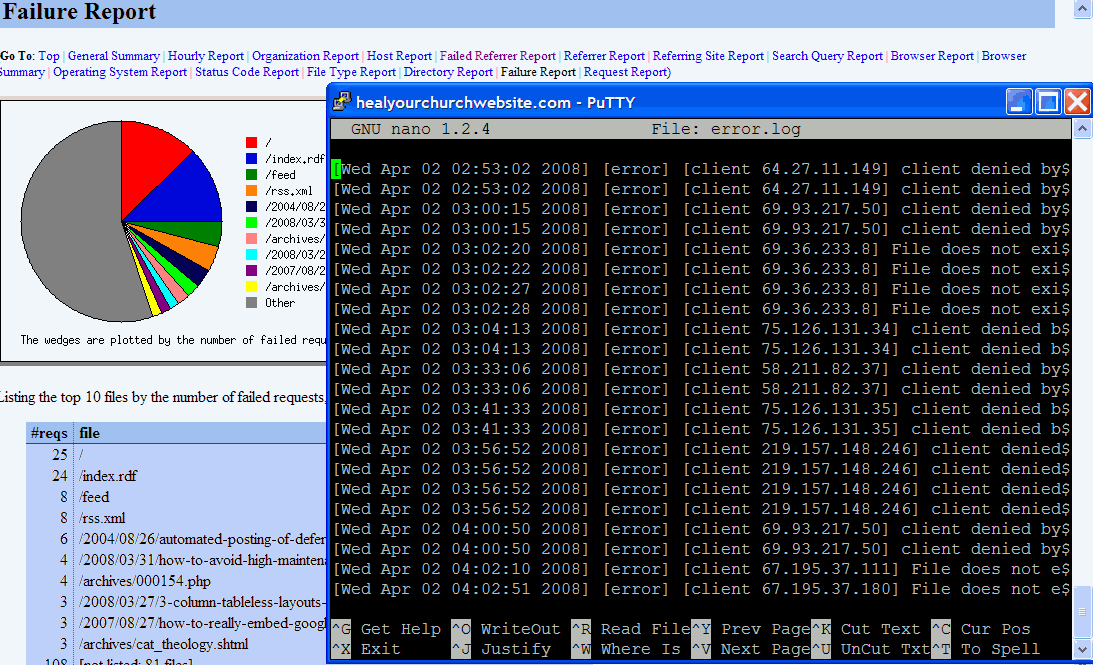
     Sample of error logs and stats screensWith more church webmasters taking advantage of free, one-click installs (e.g. WordPress, Drupal, etc …) provided by inexpensive web hosting solutions, I figure it is time to provide a quick tutorial on how to harvest useful operational, user and security information the error logs using a variety of commands already at your disposal – free.

    I have error logs” some ask? To which my response is: “Probably, did you ask your host provider?

    Once you do find your error log file(s) – and most reputable hosts do provide them, usually through whatever host management application they provide (e.g. CPanel, Plesk, etc …) – then it’s time to answer the not asked often enough question “what do I do with them?

    Below is ny semi-definitive, and most certainly emphatic response:

    Resolve 404 errors

    404 is an HTTP response by your website’s server to a user-browser request to a file not found. This information is tracked in your access logs, but usually and often is included in your error logs.

    Here is why this is important to you – reducing 404 errors:

    • reduces user frustration;
    • points out bugs in your configuration;
    • saves you gobs and gobs of disk space;
    • points out potential vulnerabilities; and
    • once fixed, improves available user bandwidth.

    First thing you need to do is figure out how your error log works, and what type of verbose messages it may or may not offer.

    Then you need to make sure you have enough SSH access (e.g. via tools like Putty) to run the Linux commands grep, egrep, tail, more and perl against your error logs.

    Short digression: Yes folks, for today’s lesson I’m assuming you are hosting on some form of a *nix platform – though one can actually perform the following functions on a Windows-based machine applying command line UnxUtils against a long file either on a server or FTP’d to your home computer.

    Getting back to today’s lesson, here’s a simple example of what command-line I would enter if I wanted to see the last 50 lines of my error log:

    tail -50 error.log

    This quickly gives me insight on the type of error messages available. For the ubiquitous 404 error – which in my world is recorded in the error log file in plain English as “File does not exist” … your mileage will likely vary. With this key phrase in mind, I can now enter the command:

    grep "File does not exist" -i error_log

    Parsing logs into human-readable columns

    Problem is, I probably get more information than I want. What I’m simply after is which IP is getting the error, how often, and on what page request. For that, I “pipe” the output from the “grep” command through Perl – which in turn parses the results by spaces.

    grep "File does not exist" -i error_log | perl -l -a -n -e 'print $F[7]," ",$F[12]'

    Counting the spaces, the IP address in my logs hits at position 7, the errant file at column 12. You’ll likely have to figit with these to get it to produce the results you’re interested in.

    Once you do, my suggestion is directing these results into a temporary file you can visit for later use. For example:

    grep "File does not exist" -i error_log | perl -l -a -n -e 'print $F[7]," ",$F[12]' > 404errors.05mar08.txt

    Once you see where the errors are occurring, usually its just a matter of creating a more comprehensive 404 request manager, and/or replacing a file that got accidentally deleted.

    Excluding certain entries

    One last trick – let’s say you’ve fixed two of your errant files, and now want to see what remains in your error log.

    Try this one on for size:

    grep "File does not exist" -i error_log | egrep "\/(file1\.html|file2\.png)" -i -v | perl -l -a -n -e 'print $F[7]," ",$F[12]' > 404errors.05mar08.txt

    Note that I used egrep instead of grep, the ‘e’ standing for regular ‘e’xpressions, which when coupled with the “exclude” operator of ‘-v’, provides us with a list of errant files excluding those you just fixed.

    Closing ‘args’

    I realize that this may sound like ‘ancient geek’ to some. If that’s the case, then my advice is ask your hosting provider what type of error stats may be available through a pre-packaged application that many hosts provide such as “awstats” and/or “webalizer.” They don’t provide the ‘gory details’ one gets with the command line options above, but it’s good enough.

    Yet for those who dare, there are additional benefits to learning how to parse your own error logs – for example, scheduling the above commands (that pipe into a file) in your cron table so you can quickly identify broken files and/or interesting inquiries from bad boys using a variety of anonymous proxy services and/or browsers in an attempt to set-up my blog as their own personal spam-bay.

    You can also save money, support calls, and/or bandwidth by identifying missing pages, images and other fixable omissions.

    For them, I have some .htaccess hacks awaiting them based on the useful input they provided me via my personally parsed error log.

  • How to secure your church’s dedicated Linux server

    This post is dedicated to all of you running your church’s website in the choir robe closet, or who have been graced with a generous and geeky member who has taken advantage of one of those cheap, unmanaged dedicated server deals advertised at places like WebHostingTalk:

    As the author plainly states, “This list is not comprehensive, nor does [he] take any responsibility for any harm that may come to your server if you use any of these commands.”

    Emphasis mine, that said, I found this a very good “quick reference” for those of you thinking about running or leasing your own Linux/Apache server. Especially for those blissfully ignorant enough to think it can be done simply by installing ubuntu on an old machine some donated as a tax-write off.

    Using Richy’s sobering tips, I went out and found how-to articles on each of these “dedicated Linux server for dummies” points – just so you could realize just how much work goes into “hardening Linux servers for dummies:”

    Now if this hasn’t scared you out of running your own server in the basement of your church or charity (and I’m hoping it does), then may suggest, rather … I COMMAND YOU to go buy and then read “Hacking Linux Exposed” before you take the dive.

    Seriously, consider the costs of trying to save money by running a box out of an unused closet or corner of your church. It may be more expensive in time and lost off data than you think. At least think of all the work that goes into hardening Linux web servers these days.

    How ’bout some of you other pros out there? I’m sure I’ve missed something. Leave a comment, we’ll add to the list.

  • Who is my IP Neighbor? And just what is his domain up to?

    Who is my (IP) neighbor? And what how their domain impacting our shared server, and their potential spammage impacting email via our our shared IP address? Find out why this is important, and how a visit to an online reverse IP domain discovery tool may be in your immediate future.

    Many church and charity web sites cannot afford the high cost, risk and labor associated with running their own dedicated server to host their web presence. Instead, they either opt for a Software as a Service solution where they buy into a pre-canned content management system, or they use a variety of content delivery tools such as WordPress, FrontPage, DreamWeaver, Arachnophilia, etc.. to creat custom content that is hosted by services such as DreamHost, 1and1, HostingMatters, etc …

    For those of you in the latter camp, you’re more than likely to have your custom content hosted on a “shared” or “virtual” web hosting service. This is a form of web hosting service where costs are defrayed by providing multiple domains their own instance of a web server software application on a single physical server. In many cases, and unless purchased as part of the solution, multiple domains also share IP addresses.

    While this communal arrangement this does provide some outrageously economic web hosting solutions – it is not without it’s downsides, including the fact that you may be sharing a server and/or an IP address with an idiot neighbor whose activities can negatively impact your web delivery as follows:

    • create bandwidth logjams due either due to run-away processes and/or heavy traffic that the neighbor really should be hosting on a dedicated server
    • create bounced or banned email as their spammage has caused your shared IP address to be placed on a Real Time Black Hole list (a.k.a. DNS Blacklist ).

    For those of you who suspect this is happening to you and/or are just curious as to who your neighbor is, there are services out there that provide a listing of the domains sharing your IP address.

    My personal favorite is one entitled the myIPNeighbors reverse IP domain check.

    What I like most about it is their legitimate use of frames to display the domains names in a left-column menu, displaying the front page of each domain as you click on the menu names.

    Just be aware (read warned) that you may be shocked by what you see – as not all neighbors are as Christ-centric as yours.

  • the Apache .htaccess file generator

    If you’re looking for a fast and less-painful-than handcoding mechanism for mod_rewrite manglement of spammers, hot linkers and other bandwidth bad boys, then look no further than this little ‘the Apache .htaccess file generator’ I found the other day.

    I’ve written about the madness that is mod_rewrite more than once – though I myself have had to handle more than one battle crafting an .htaccess file to fight spammers, image bandwidth bandits and other ‘Net’ nere-do-wells.

    So it was with a bit if little-girl-like giddiness that I giggled with glee when finding this little gem of a generator while briefly toying with the idea of running a server from my home – and idea I ditched not long after coming across a $15.95/month ‘code monster’ deal from DreamHost.com to handle the various blogs I host – while leaving the big-kahuna BBS that pays for the bills on its own dedicated server – but I digress.

    Gentlemen, and ladies, it is with immeasurable programmer-nerd-boy pleasure I give you ‘the Apache .htaccess file generator’ powered by cooletips.de, which with a bit of mad scientist experimentation can make your urls less crufty, your content more secure – and with any luck, make you look 10 years younger and take 3 inches off your waist (hat tip to LifeHacker.com)

    Well, okay, I’m exaggerating a bit – point is, this little generator can take a lot of the guess work that often frustrates even the most experienced apache admin by giving you the ability to check a few boxes and create a useful .htaccess file that you can use to manage your mod_rewrite without having to shoot your foot clean off too many times.