Category: How-To

  • ip2Country.pl – A fast little script to bulk id IPs by country

    ip2Country.pl - a fast little PERL script to bulk identify IPs by countryYes, I know, all cool programmers use Python these days – but to this old-school programmer, PERL is to my antiquated PC what GWBasic was to first computer at work back in 1983. That is a nice little tool to get things done, like identify a list of IP addresses by country.

    Here’s the situation, I’ve been getting a lot of incoming spambots attempting to create accounts and post comments both here on HYCW and a few other sites I help manage. The Akismet spam filtering service catches all of it – but there’s still at times a huge draw on bandwidth, CPU and other resources when these bots hit.

    So from time to time, I harvest the IP addresses from the thwarted ne’er-do-well’s failed attempts via my user registration table and/or Apache logs and then add them to the firewalls, .htaccess file and/or application IP ban lists of these various sites – except for those IPs incoming from countries where both the languages and laws give me the ability to email the abuse administrator.

    Moreover, by excluding IPs from countries like the US, Canada, etc … from my ‘hit list,’ I don’t accidentally banish entire ISPs such as RoadRunner, ComCast or AOL when one of their user’s machines goes z0mbie goes due to some malware.

    So the trick is then to take all the IPs from all the computers with which I’m associated, and drive the list through a simple application that will generate a list of IPs to ban – while excluding IPs whom I can (and do) contact via email at a later time.

    Which is what inspired me to write ip2Country.pl – a fast little PERL script to bulk identify IPs by countries who don’t have IP abuse administrators who care, and generate a bash script to insert the entries into my apf firewall deny_hosts.rules file:

    #!/usr/bin/perl
    #
    # by Dean Peters
    # http://healyourchurchwebsite.com/
    #
    use IP::Country::Fast;
    use Geography::Countries;
    my $reg = IP::Country::Fast->new();
    
    print "#/bin/sh\n";
    print "# -- append firewall --\n";
    while() {
            chomp;
            my $ip = $_;
            my $ip_cntry_abr = $reg->inet_atocc($ip);
            my $ip_cntry_nam = country $ip_cntry_abr;
            next if ($ip_cntry_abr =~ m/US|CA|GB|AU|NZ/i);
            print "/etc/apf/apf -d $ip {mad spammer from $ip_cntry_nam}\n";
    }
    print "# -- restart firewall --\n";
    print "/etc/apf/apf -r\n";
    
    __DATA__
    121.1.29.246
    121.15.200.148
    193.238.213.70
    196.20.7.74
    210.22.83.146
    217.30.244.226
    222.124.200.212
    

    Oh sure, I could be real fancy and write a version that takes command line arguments for individual IP addresses and/or a file of IP addresses … but the point here was to demonstrate how a crufty old tool like PERL can help bulk identify IPs by countries so you can too add them to your firewalls, .htaccess file and/or application IP ban list.

    That said, if you’ve got a Python or even PHP version of the same, leave a comment and share the goods.

    Or you can just preemptively use the online services of Block a Country and be done with it.

  • Spring Cleaning, or time for a HealYourChurchWebsite do-over.

    Time for Heal Your Church Website to upgrade her browsing experience.The birds are singing, the flowers are blooming and WordPress 2.5 has been ‘in the wild’ for a couple of weeks. These factors, and the fact that my own blog is getting a bit crufty has me thinking it is time for yet another Heal Your Church Website do-over. That and I’ve been getting some ‘love notes’ that either fall into the category “how do I get started” or “you reviewed my site, so here is why your blog sucks.” I figure success is the best response, so here’s my initial game plan – thinking out loud as some of you may be in a similar situation of having to freshen up your church and/or charity website.
    1. Research

      I’ve already got a good idea of what I want to say, so mostly in this case I need study what resonates via the results I’ve been collecting via Google Analytics and FeedBurner, including:

      • keywords,
      • popular pages,
      • unusual usages of feeds,
      • any patterns in exit pages,
      • any patterns in entry pages,
      • and any patterns in people navigating into the site.

      I’ll couple this with looking over my error logs to see where people are stumbling the most. I think looking over some of the nicer ‘love notes’ may also be useful as they’re often requests for information I’ve published before.

    2. Plan and ‘objectifry’

      Meaning, based on the research above – along with day-to-day experiences, enumerate a set of requirements and objectives mostly based on needs, though since it is a personal blog, some wants too.

    3. Backup everything

      I need to not only save everything, but also insure I have an effective restoration/rollback plan in the off-chance things go horribly wrong (like I don’t have the right version of PHP or MySQL, etc …).

    4. Re-factor my categories

      Some of these old categories are crufty and unintelligible. They need my healin’ sooner than later and I’m thinking probably better to do it before the upgrade than after – though the new version of WordPress may have some features and/or plug-ins that make such a migration less painful. I’ll have to research that.

    5. Draw out a new template

      First on paper, then later using PhotoShop or PhotoImpact. Don’t get me wrong, I still like the whole Byzantine Cross on the blue domes of Orthodox Churches at Santorini, and may have an opportunity soon to be there – but overall the current theme is beginning to wear. That and it’s just too darn dark.

    6. Upgrade to WordPress 2.5

      Knowing already that this step will likely include the following plugins:

      I already use some of the above, I also know others come ‘bundled’ with the WordPress 2.5 release. Also a word of warning to WordPress “n00bz” – I’ve got a very good idea of what I’m delivering here content-wise, so any and/or all of the selections above are based upon those needs; rather than those ‘neato-keen‘ inspirations.

    7. Update the Theme

      Either generate from scratch and/or adopt and/or modify an existing WordPress theme that is

      • A wider fixed or fluid width
      • Widget ready
      • Has an options page
      • 2 or 3 columns
      • Right sidebar
      • Brighter colors

      I also need to code the theme (or write a plugin) so the last 2 or 3 posts display in full, the next 8 or 10 as excerpts.

    8. Test the site

      • first for functional soundness (technical testing)
      • then to see if it meets my goals/objectives (use cases)
    9. Clean up crufty content

      Go through older articles, eliminating/archiving stuff that’s no longer relevant and cleaning-up some that got hammered by moving from MT 1.0 through 3.0 then to WP 1.5 through to 2.5.

    10. Sit back and enjoy

      Create numerous annoying posts about what pains I suffered executing on the above game plan.

    So here’s your chance kids – got something you’d like to see done differently here? Speak up, now’s your chance.

    Oh and if I get enough love notes and/or comments on this topic, I’ll discuss answers in a fun follow-up post. So be sure to make your notes to me pithy and quotable (and don’t forget the link to your site !-).

  • How to quickly check your error logs for oddities

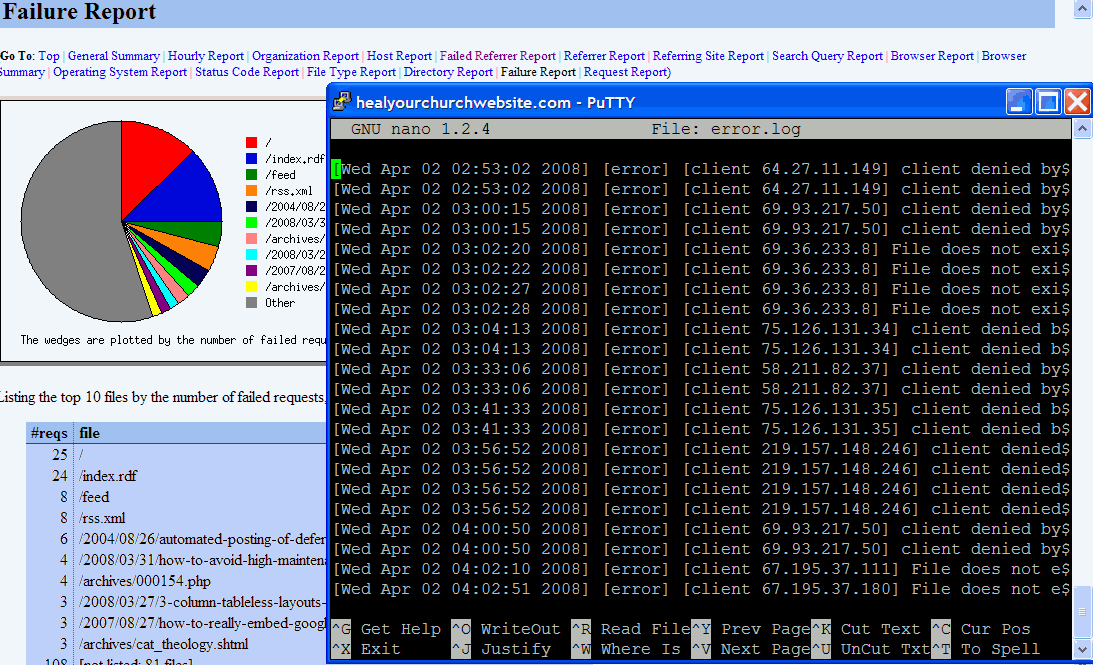
     Sample of error logs and stats screensWith more church webmasters taking advantage of free, one-click installs (e.g. WordPress, Drupal, etc …) provided by inexpensive web hosting solutions, I figure it is time to provide a quick tutorial on how to harvest useful operational, user and security information the error logs using a variety of commands already at your disposal – free.

    I have error logs” some ask? To which my response is: “Probably, did you ask your host provider?

    Once you do find your error log file(s) – and most reputable hosts do provide them, usually through whatever host management application they provide (e.g. CPanel, Plesk, etc …) – then it’s time to answer the not asked often enough question “what do I do with them?

    Below is ny semi-definitive, and most certainly emphatic response:

    Resolve 404 errors

    404 is an HTTP response by your website’s server to a user-browser request to a file not found. This information is tracked in your access logs, but usually and often is included in your error logs.

    Here is why this is important to you – reducing 404 errors:

    • reduces user frustration;
    • points out bugs in your configuration;
    • saves you gobs and gobs of disk space;
    • points out potential vulnerabilities; and
    • once fixed, improves available user bandwidth.

    First thing you need to do is figure out how your error log works, and what type of verbose messages it may or may not offer.

    Then you need to make sure you have enough SSH access (e.g. via tools like Putty) to run the Linux commands grep, egrep, tail, more and perl against your error logs.

    Short digression: Yes folks, for today’s lesson I’m assuming you are hosting on some form of a *nix platform – though one can actually perform the following functions on a Windows-based machine applying command line UnxUtils against a long file either on a server or FTP’d to your home computer.

    Getting back to today’s lesson, here’s a simple example of what command-line I would enter if I wanted to see the last 50 lines of my error log:

    tail -50 error.log

    This quickly gives me insight on the type of error messages available. For the ubiquitous 404 error – which in my world is recorded in the error log file in plain English as “File does not exist” … your mileage will likely vary. With this key phrase in mind, I can now enter the command:

    grep "File does not exist" -i error_log

    Parsing logs into human-readable columns

    Problem is, I probably get more information than I want. What I’m simply after is which IP is getting the error, how often, and on what page request. For that, I “pipe” the output from the “grep” command through Perl – which in turn parses the results by spaces.

    grep "File does not exist" -i error_log | perl -l -a -n -e 'print $F[7]," ",$F[12]'

    Counting the spaces, the IP address in my logs hits at position 7, the errant file at column 12. You’ll likely have to figit with these to get it to produce the results you’re interested in.

    Once you do, my suggestion is directing these results into a temporary file you can visit for later use. For example:

    grep "File does not exist" -i error_log | perl -l -a -n -e 'print $F[7]," ",$F[12]' > 404errors.05mar08.txt

    Once you see where the errors are occurring, usually its just a matter of creating a more comprehensive 404 request manager, and/or replacing a file that got accidentally deleted.

    Excluding certain entries

    One last trick – let’s say you’ve fixed two of your errant files, and now want to see what remains in your error log.

    Try this one on for size:

    grep "File does not exist" -i error_log | egrep "\/(file1\.html|file2\.png)" -i -v | perl -l -a -n -e 'print $F[7]," ",$F[12]' > 404errors.05mar08.txt

    Note that I used egrep instead of grep, the ‘e’ standing for regular ‘e’xpressions, which when coupled with the “exclude” operator of ‘-v’, provides us with a list of errant files excluding those you just fixed.

    Closing ‘args’

    I realize that this may sound like ‘ancient geek’ to some. If that’s the case, then my advice is ask your hosting provider what type of error stats may be available through a pre-packaged application that many hosts provide such as “awstats” and/or “webalizer.” They don’t provide the ‘gory details’ one gets with the command line options above, but it’s good enough.

    Yet for those who dare, there are additional benefits to learning how to parse your own error logs – for example, scheduling the above commands (that pipe into a file) in your cron table so you can quickly identify broken files and/or interesting inquiries from bad boys using a variety of anonymous proxy services and/or browsers in an attempt to set-up my blog as their own personal spam-bay.

    You can also save money, support calls, and/or bandwidth by identifying missing pages, images and other fixable omissions.

    For them, I have some .htaccess hacks awaiting them based on the useful input they provided me via my personally parsed error log.

  • How to avoid high maintenance church website design

    High Maintenance: Lamborghini v. Mommy VanFor what will it profit a man if his church website is the slickest in the Internet if he has to forfeit a month’s collections just to change the welcome message?

    If you haven’t guessed by the play on Matthew 16:26 (&/or Mark 8:36, &/or Luke 9:25), or the somewhat wordy “bad church web design poster #006,” the topic of today’s “sermonette” is website maintenance.

    You see, there’s a dirty little secret that professional web developers such as Tim Bednar, Mike Boyink, and myself have known for years:

    Creating and designing websites is alluring and hi-profile work – whereas maintaining code and a consistent stream of compelling content is difficult and is about as glamorous as the janitor who keeps the church toilets clean.

    A point made all the more sharper, like a pointy stick in the eye sharper, when you fall into the trap of having that college kid studying home on spring break create for a really super-click Flash-based church website that everyone – and only – those in his age group and demographic can ‘really appreciate.’

    Then the train wreck occurs sometime in early October when said student is back at art school and your poor church Secretary has to post updates from those in the field on summer mission programs.

    Sound Familiar?

    If not, just give it time. Since 2002 when I started out on my crusade to teach, rebuke correct & train others in righteous web design I’ve seen literally hundreds – perhaps thousands – of church websites that went down this path to obscurity and frustration.

    And this is why we find churches equipped with data-driven content management systems, or at least driven-by a reasonable blogging system, providing pages with excellent search engine rankings and the visitors and conversion rates to show for it.

    Sound Good?

    Okay, so if I’ve sold you on the concept that maintenance is the key to a successful online ministry, then perhaps then I can also convince you and/or your church to engage in the following processes to keep it going for years and years even though your resources are tight and your time tighter:

    • Establish a web ministry team comprised of the following mix of talents:
      • a member of the church staff
      • a software developer type
      • a hardware geek
      • a graphic artist type
      • a word-smith
      • a marketeer
    • Consider employing a content management &/or a logging service to render your church website such as:
    • Engage in a formalized design process before writing a single line of HTML/code that includes:
      • reviewing what’s out there
      • understanding your neighborhood
      • setting attainable goals and objectives
      • establishing minimum requirements
      • defining an informational architecture
      • creating a project plan
    • Execute a development plan that includes the following steps:
      • designing a prototype
      • soliciting user feedback
      • building the system
      • testing functionality
      • testing use cases
      • testing loads and bandwidth
    • Follow-up with a maintenance plan that includes:
      • user education
      • staff training
      • analysis of web analytics
      • data & system backups
      • disaster recovery drills
      • security audits
      • error-log reviews
      • checks of search engine ranking
      • software upgrades
    • Security ongoing success with:
      • rotating in/out new members to your committee;
      • occasionally testing new applications and technologies;
      • periodically soliciting feedback from seekers and church members;
      • make sure there’s a line item in the church budget for the website.

    Sound Too Hard?

    Now if you’re panicking a bit over some of the items above – don’t sweat it. If you’ve took my advice to create a team that includes both a hardware and software geek, you’re good to go on those issues like “use-case testing” or “disaster recovery drills.

    And if you’re too small to do the above – again, don’t sweat it – simply figure out what you can do from the above list with what you’ve got, never forgetting that putting up a website is easy – it’s the maintenance that’s a killer.

    For which of you, desiring to build a tower, does not first sit down and count the cost, whether he has enough to complete it? Otherwise, when he has laid a foundation and is not able to finish, all who see it begin to mock him, saying, ‘This man began to build and was not able to finish.’ Or what king, going out to encounter another king in war, will not sit down first and deliberate whether he is able with ten thousand to meet him who comes against him with twenty thousand? And if not, while the other is yet a great way off, he sends a delegation and asks for terms of peace. So therefore, any one of you who does not renounce all that he has cannot be my disciple. – Luke 14:28-33

    (psst: oh yeah, in case you didn’t figure it out, you click on the small image of the poster above to get to the really-big version you can print out and nail to the door of your church)

  • How I fixed my Windows XP Stop c000021a {Fatal System Error} with Knoppix Linux

    Below are steps describing how I used Knoppix Linux to fix the dreaded Windows XP ‘Error Message: Stop c000021a {Fatal System Error} The Session Manager Initialization System Process…’ failure.

    This morning, when I powered-up my computer at work, my Windows XP-based computer booted blue, noting a file error which in turn kicked off an automatic chkdsk scan/fix of my hard drive. I got some coffee and used my smart phone to address email while all this was going on.

    When the system was done “fixing” the broken files, it rebooted to something I’d never seen before – a blue screen of death with the following ubiquitous message:

    Stop: c000021a {Fatal System Error}
    The Session manager initialization system process terminated unexpectedly with a status of 0xc000026c (0x00000000 0x00000000).
    The system has been shut down.

    After a few bouts with the on/off switch, it was clear, I was dead in the water.

    I walked down the hall to visit the IT guys, together we brought up the Microsoft Knowledgebase file #317189 entitled “Error Message: Stop c000021a {Fatal System Error} The Session Manager Initialization System Process…

    It had fun advice like installing Dr.Watson, running a memory dump and then sifting through the disassembled 0’s and 1’s to figure out what broke. Of course one’s machine would have to boot before that byzantine process was possible – a minor point not considered in said documentation.

    There were some other things about registry files, but again, I can’t get to the the C:\> command line prompt then it doesn’t do me much good.

    I did find on the Messenger Plus! Live Forums advice to run the Windows repair and replace my psapi.dll file with an older version, but again, that’d require getting onto the hard drive – and the only way I knew how to do that at this juncture would be take a route similar to the one I wrote about in 2003 in my post entitled:’Linux-based approach to fixing MSBlaster Worm infection.’

    So after digging through a few drawers and CD stacks, I found a Knoppix CD I had ‘burninated’ back in October for my blogging-tour of Jordan. For those of you who don’t know, Knoppix is a Linux distribution based on Debian GNU/Linux designed to be run directly from a CD / DVD.

    So I popped the Knoppix disk into the CD drive, turned on the power switch and within minutes, my machine was back up and running under Windows XP; though part of me wonders if there’s not an Ubuntu install in store for my aging home computer … but I digress …

    Anyway, I figured it might be helpful to some of you out there if I provides some detailed step on how I fixed my broken Windows operating system with Linux:

    1. Boot up your computer from the CD drive with your latest CD ‘burnination’ of Knoppix.
      • For me, this meant hitting the F12 key on boot up, and instructing the computer to boot from the CD/DVD drive instead of the hard drive.
      • This step also assumes that at some time in the past, you downloaded, burned and tested a Knoppix CD.
    2. At the initial ‘boot:’ prompt, hit enter.
      • You may find you’ll need to boot Knoppix with various startup options to make it work on you particular hardware platform.
      • Hitting the F3 key will show you some of those options. You can also find “cheat codes” online.
    3. Hopefully at this point you’ll see a “Windows-like” desktop known as KDE – and with luck – the hard drive in question will appear represented by an icon at the upper left as mounted and available for use.
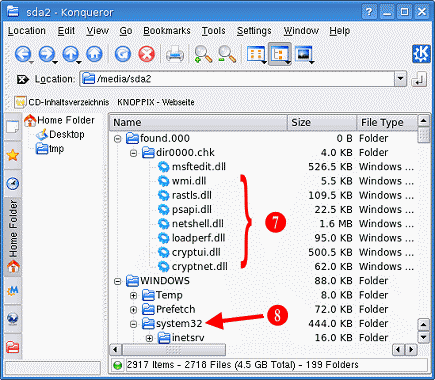
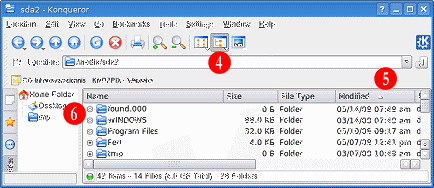
    4. Click on the drive icon that contains your Windows operating system. This will open up (and you Linux fans out there, please forgive me for the term I’m about to use) this will open up an “Explorer like” file window as depicted below:
      Heal Your Church Website: saving Windows w/Knoppix screen 1
      I suggest changing the the display to list the files in ‘detail.’
    5. Sort your directory by date in descending order.
    6. Expand both the found.000 (our found.001..n, etc) and your Windows/System32 directories.
    7. View which files the Windows chkdsk moved into the found.000 path as listed below:
      Heal Your Church Website: saving Windows w/Knoppix screen 1
    8. Check for the same file names in the System32 directory – back them up of need be – then copy the files from the found.000 path into the /Windows/System32 directory; overwriting the existing files by the same name.
      • This is a dangerous move and can entirely mess-up your system -do it at yoru own risk.
      • In my case, I would have made backups, but all of them were of a 0 byte filesize, timestamped this morning at the time of the crash.
      • This is a dangerous move and can entirely mess-up your system -do it at yoru own risk.
      • It never hurts to backup files you’re abut to overwrite.
      • This is a dangerous move and can entirely mess-up your system -do it at yoru own risk.
    9. Shutdown Knoppix correctly (don’t be impatient and just pull the plug:-) – remember to remove the CD from the drive when prompted.
    10. Reboot under Windows.

    DISCLAIMER

    : Warning – I do not recommend this course of action. I am merely enumerating the steps I took to fix my computer under my circumstances, configuration and context. Your mileage may vary – as potentially you risk losing everything in following the same above steps.

    Now if you don’t mind, I have some backups and diagnostics to run. After that, time to go ‘burninate‘ a fresher Knoppix CD; you never know when it’ll come in handy.

    – – – § – – –

    MORE GREAT ADVICE:

    – – – § – – –
  • How to set your system clock in Linux

    So once again, that infernal Daylight saving time thingie bothers us by automatically setting, or perhaps not setting our system clocks on your Ubuntu, Red Hat, Fedora, Debian, Knoppix, or Suse install either an hour ahead, or remaining an hour late!

    the official U.S. timeHere are two simple command lines to synchronize your Linux system clock with the atomic clocks offered by the National Institute of Standards and Technology … hmmmm … atomic energy ….

    … sorry, got distracted with all that power at my disposal. So if you have access to the root account of your server, or better yet – have access to the guy who has access to the root account, here’s all you need to know:

    /usr/sbin/ntpdate -b -s time-a.nist.gov
    /sbin/hwclock --systohc --utc

    Now if you don’t live in the EasternTime Zone as I do, then you’re NOT going to want time-a.nist.gov as your time server. Instead, go to the NIST Internet Time Service page and pick the server that best matches your timezone and daylight savings situation.

    While you’re at it, you can also modify the /etc/rc.d/rc.local file to include the above commands – or at least the first command so it is executed when the server reboots.

    For more gory details on this topic, here is a great little page called Linux Tips – Linux, Clocks, and Time to get ya going in the right place … at the right time (sorry, couldn’t resist the corn-ball humor opportunity).

    Oh and for those in the U.S. who need to set the clock on the VCR (I know some of you still have them … blinking) and/or microwave oven to the correct time, there’s always the human readable the official U.S. time web page, also offered by NIST.

    Like your mileage, your timezone may vary … and I promise … no more ‘geek speak’ for the rest of the week.

  • How to block a range of IPs from spamming your church website

    Using a blog to manage a website’s content is a flexible and affordable solution more and more churches are employing to effectively present their message online. There is however one drawback – in that some of the open source blogging solutions used as content management on the cheap also tend to attract attention from nere-do-wells who attack the comment and content functions of application such as WordPress and MovableType with robotic floods of advertisements offering anything from enlarging various appendages to curing male baldness all while losing your life’s saving playing poker online.

    What’s worse is that many of these attacks these days come from servers in countries where you have absolutely no legal, let alone social, recourse to stop said attacks. Take for example a recent slam of attacks on a new dedicated server I’ve been working on – all which failed due to recent preventative security endeavors – but all incoming from a block of related IP addresses from a server in China all of whose addresses had 218.25.161… in common.

    And while these unwanted advances were successfully thwarted by various server hardening practices implementations – the best way to avoid trouble from said attacker is to just deny access to anything on the server by denying the range of IP addresses indicated in my security logs.

    With that in mind, I thought I’d share two approaches to blocking a range of IP addresses. One solution at the firewall level – the path I prefer on dedicated servers, the other solution is blocking IP blocks via the .htaccess file, which are employed on sites hosted on a shared server.

    Using APF firewall, I simply create an entry that defines the block – in this case:

    218.25.161.0/24

    In the .htaccess file:

    <Limit GET HEAD POST>
    order allow,deny
    deny from 218.25.161
    allow from all
    </LIMIT>

    Both implementations block IP addresses from 218.25.161.0 through 218.25.161.255. But what happens if I only want to block addresses from a smaller set of addresses? Like those coming from someone abusing their DSL services whose range of dynamically assigned IPs may only be a range of 216.12.201.150 through 216.12.201.200.

    That becomes trickier as is requires both a knowledge of the ‘CIDR notation’ and the bit mapping that goes along with it. Which is why I recommend instead using this nifty little online tool from Mikero.com. An easy-to-use service which performs all the bit-blasting, while also “aligning” the range so it can be expressed in correct CIDR notation.

    Or in laymen’s terms, I add the following generated range to my firewall:

    216.12.201.128/25

    Or where no such firewall access is available, the following line in my .htaccess file:

    deny from 216.12.201.128/25

    Below are some tools and links on the topic of how to block a range of IP addresses if you want to dig into it a bit further.

    Online tools to calculate an IP address range (CIDR):

    Online tools to check/verify your CIDR notation:

    Tutorials on blocking IP addresses and CIDR subnet masks:

    Pre-fabricated blacklists to block IP addresses of entire countries:

    A bit more on .htaccess and mod_access:

    Just remember to keep good backups of whatever files you’re working on – and try not to lock yourself out while experimenting with changes!

  • How to secure your church’s dedicated Linux server

    This post is dedicated to all of you running your church’s website in the choir robe closet, or who have been graced with a generous and geeky member who has taken advantage of one of those cheap, unmanaged dedicated server deals advertised at places like WebHostingTalk:

    As the author plainly states, “This list is not comprehensive, nor does [he] take any responsibility for any harm that may come to your server if you use any of these commands.”

    Emphasis mine, that said, I found this a very good “quick reference” for those of you thinking about running or leasing your own Linux/Apache server. Especially for those blissfully ignorant enough to think it can be done simply by installing ubuntu on an old machine some donated as a tax-write off.

    Using Richy’s sobering tips, I went out and found how-to articles on each of these “dedicated Linux server for dummies” points – just so you could realize just how much work goes into “hardening Linux servers for dummies:”

    Now if this hasn’t scared you out of running your own server in the basement of your church or charity (and I’m hoping it does), then may suggest, rather … I COMMAND YOU to go buy and then read “Hacking Linux Exposed” before you take the dive.

    Seriously, consider the costs of trying to save money by running a box out of an unused closet or corner of your church. It may be more expensive in time and lost off data than you think. At least think of all the work that goes into hardening Linux web servers these days.

    How ’bout some of you other pros out there? I’m sure I’ve missed something. Leave a comment, we’ll add to the list.