Tag: logs

  • find-a-bot.sh – a nice little script to ID bots bugging your website site

    a nice little script to ID bots bugging your websiteOriginally published on May 30, 2008, made some modifications & bumped it up in the display queue.

    Already demonstrating earlier this week how to block spambots and rogue spiders. Today I’m completing the lesson with a nice little bash script sample that can help you identify some of these non-browser ‘candidates’ by parsing your access logs and placing the results in an easy-to-read text file.

    In other words, this script will selectively find most non-browser user agents that appear in your access logs like this:

    24.190.239.220 - - [29/May/2008:05:16:19 -0700] "GET /about HTTP/1.1" 200 628 "-" "Java/1.6.0_06"
    79.71.205.134 - - [29/May/2008:00:56:34 -0700] "GET / HTTP/1.1" 200 12888 "-" "Site Sniper Pro"

    And turns it into a slightly saner and sorted output like this:

    24.190.239.220 [29/May/2008:05:16:19 "Java/1.6.0_06"
    79.71.205.134 [29/May/2008:00:56:34 "Site Sniper Pro"

    Here is what your bash script might look like on a site running WordPress on shared host like DreamHost … I’ll explain some of the mechanics afterwards:

    #!/bin/bash
    #
    # step 1 - modify these so you get paths like this:
    #   /home/YOURROOT/YOURDOMAIN.coM/...
    #
    myroot="YOURROOT"
    mydomain="YOURDOMAIN.COM"
    
    #
    # step 2 - leave alone if these days & formats work for you:
    #
    TERM=linux
    export TERM
    tdy=`date +%d%b%y`
    ydy=`date -d '1 day ago' +%Y-%m-%d`
    dby=`date -d '7 day ago' +%Y-%m-%d`
    logfile="access.log.$ydy"
    
    #
    # step 3 - modify if you're using something other
    #           than  WordPress on DreamHost
    #
    outfile="/home/$myroot/$mydomain/findabot"
    logpath="/home/$myroot/logs/$mydomain/http/"
    csspath="/home/$myroot/$mydomain/wp-content"
    
    #
    # step 4 - mother of all parsing statements, parse to taste
    #	(note this version DOES sort)
    #
    # 	remember \ at the very end of line equals
    #	bash line continuation of a command set
    #
    grep "$csspath" -v $logpath$logfile | \
      egrep " \"(Mozilla|Opera)\/[0-9]| \"BlackBerry[0-9]{4}" -v | \
      perl -l -a -n -e 'print $F[0]," ",$F[3]," ",$F[11]," ",$F[12]," ",$F[13]' | \
      sort -n > $outfile/$ydy.txt
    
    #
    # step 5 - maintain a manageable archive
    #
    if [ -e $outfile/$dby.txt ]; then
    	mv -f $outfile/$dby.txt $outfile/bak.txt
    fi
    

    Okay, step 1 basically means you login to your site either SSH or even FTP and before navigating anywhere, issue the “pwd” command so you can determine your YOURROOT and YOURDOMAIN (though the latter may likely be your website’s url).

    Step 2 is how we get date stamps for our input and output files. I found a nice simple example of date variable formatting of these over on an ExpressionEngine manual – but they’ll work in your bash script just fine.

    Also, that line containing “7 day ago” can be modified to indicate how many days worth of logs you want to keep active. Similarly, the prior line containing “1 day ago” means you want to parse yesterday’s logs.

    Step 3 is basically how I use variables to define file and directory paths based on what I coded for steps 1 and 2.

    Step 4 combines all the elements from the above steps and taking a page out of my April 2nd article entitled ‘How to quickly check your error logs for oddities‘ issues a consecutive stream of grep and/or egrep commands.

    Sometimes leveraging the ‘-v’ command to exclude elements, most noteably when I’m excluding known user agent strings for browsers.

    This done, a bit of PERL command line magic is used to parse out the fields we want, where afterwards the selected data is sorted and piped into the output file defined in step 3.

    Step 5 takes into account that logs can get big, so this is where we manage an archive … based on step 2 … for 7 days worth of entries.

    find-a-bot gets into the bits and bytes of web site bottageIf you’re not familiar with creating bash scripts, you may encounter situations where you need to “chmod” or even “chown” the file to get it to work.

    The next step – though not documented above – is to test the script and when you’re sure it’s working, modify your crontab file so your batch runs every night, like say 2:15 AM while you and everyone else are sleeping. Here’s what my crontab entry looks like:

    15 2 * * * /home/YOURROOT/find-a-bot.sh > /dev/null

    I’ve provided a .txt version of the file you can simply download from here.

    Moreover, I’ve created a slightly more complex version to download of the above for use on a system running a something like vBulletin on a root or virtual private server operating with Fedora or RedHat.

    The point is, while the above appears a bit complex, I can assure you it’s worth running as it can help you quickly discern over the course of a few days:

    • how often and how hard spambots are sniffing your system
    • how much of your bandwidth is consumed by feed readers versus browsers
    • which feed readers are hammering away at your site, ignoring your <skiphours /> and/or <skipdays /> data
    • how much bandwidth you might save by exporting your sermon’s RSS feeds to a service like FeedBurner
    • what spiders are ignoring your robots.txt file
    • tips on unusual visitors from interesting places from unique user agents
    • whether or not some of the comment spam is via “Mozilla-like”agents who botch their user agent string
    • how many of your visitors are infected with spyware
    • how many of your visitors are trying to hide their tracks by visiting you with an anonymous proxy firing blank user agent strings
    • how many spamblogs are leaching your compelling content

    Like I said, it will require just a little bash script know how, so with that, I leave you with these tutorials:

    Oh and if you’re nice and leave a comment, I might even email you a link to my own archive of greatest bot hits over the past few days.

    Especially if you share your own scripting recipes for spotting bots.

  • 5 things we can learn from my 7:40 AM Thanksgiving wake-up call

    I believe it was the slam of a large piece of plywood falling 2 some-odd stories onto other lumber that rudely awoke me at 7:40 AM this Thanksgiving morning.  An no, I couldn’t go back to sleep as the hum of a noisy air compressor placed precisely next to the property line driving the pneumatic hammers were equally annoying. That was the scene at my home this holiday.

    trash next door
    trash heap at 5244 levering mill rd, apex, nc

    D&G Builders of Fuquay Varina proceeded to work on a new house.

    A house next door being constructed on behalf of PenfieldHomes.com.

    And after a few emails and phone calls to a project manager of construction who informed me that “Mexicans don’t celebrate Thanksgiving like us …”

    So after telling said project manger that I didn’t want a feud, I apologized if anything we said or did offended (though I’m truly hard pressed to think of any such word or deed) – and he in turn called off the work squad – and I began to think of how similar situations can impact the peaceful operation of our church and charity websites.

    In other words, just as noisy neighbors and/or construction are a nuisance in the real world, so too can the virtual home of our organization’s web presence can be disrupted by inconsiderate acts.  Here are some analogies that come to mind:

    1. Noise
    I had an experience lately where some blogs I run on a shared server were inaccessible due to the incoming noise from a bunch of spammers and ‘bots. This was because a neighboring domain sharing the same IP had put up a BBS in an unsecured fashion.
    2. Obstructions
    It’s only happened once, but a truck was recently parked that partially blocked our driveway. In the same way, access to your site can be obstructed in part and/or in whole when those working on and/ror running the website ‘next door’ with an improperly parked modules and/or run-away program that consumes all the server’s memory and ports.
    3. Trash
    Nobody like’s picking up someone else’s garbage. My wife is no exception, as she recently found herself picking up unsecured McDonald’s bags that had blown into our yard. In the same way, neighboring website projects can also leave rubbish in the form of temporary files, no-longer used compiler settings and the like.
    4. Boundaries
    The Wake County, NC ‘UDO‘  defines a minimum number of feet in which a new home structure can be built next to another, how much noise is acceptable and other fun stuff like that. However, just because these rules are on the books doesn’t mean they’re going to be enforced. Meaning, it is going to be up to me to look out for instances of encroachment. In the same way, don’t expect or assume the host of your shared server is going to have your best interest in mind. They don’t and won’t. It is up to you to be diligent be on guard for those times neighboring websites and/or webmasters wander into your domain – and to work within the boundaries of good citizenship and the rules to resolve such issues.
    5. Communications
    If possible, establish one point of contact and a protocol for those situations where you feel you’re on the receiving end of some inconsiderate instances or situations. For example, know the correct channels of communications for your web host, and if feasible, for your IP Neighbor. Similarly, understand that email, though convenient, can lead to a breakdown that leads to unnecessary and unfortunate bad blood. Especially true when individuals on the other side are already having a bad day due to some other unrelated inconsideration. In all cases, keep track and logs of all such communiqués as you never know when you’ll need them.

    Anyway, those are my thoughts this Thanksgiving morning as I ignore the slam of pneumatic hammer guns and the humming whir of the air compressor and set my thoughts onto some delicious Greek Chopped Meat Stuffing and football.

    Well that and all the wonderful ways in which I’ve been blessed, including my family, my friends, my job, my church, and also the hundreds of visitors to this site – many of whom have sent me private messages of best wishes. Thank you all. I’m very grateful for every remembrance of you (Philippians 1:3).

    And with that, here are some links to some other related articles I’ve posted in the past. These include some practical advice on “how-to” implement some of the safeguards, countermeasures and logging I’ve mentioned above:

    Now if you don’t mind me, I’m off to E-Bay and/or Craigslist to find an affordable ANSI S1. 2-1962 sound level meter to leverage. I’m hoping I don’t need it but one never knows.

  • How to quickly check your error logs for oddities

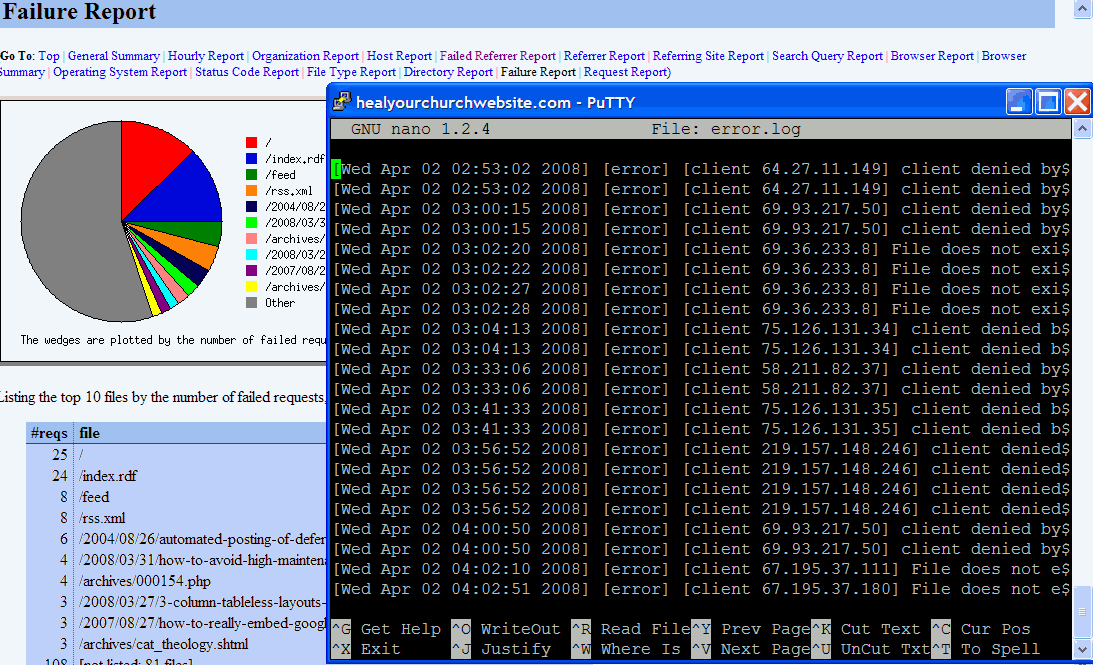
     Sample of error logs and stats screensWith more church webmasters taking advantage of free, one-click installs (e.g. WordPress, Drupal, etc …) provided by inexpensive web hosting solutions, I figure it is time to provide a quick tutorial on how to harvest useful operational, user and security information the error logs using a variety of commands already at your disposal – free.

    I have error logs” some ask? To which my response is: “Probably, did you ask your host provider?

    Once you do find your error log file(s) – and most reputable hosts do provide them, usually through whatever host management application they provide (e.g. CPanel, Plesk, etc …) – then it’s time to answer the not asked often enough question “what do I do with them?

    Below is ny semi-definitive, and most certainly emphatic response:

    Resolve 404 errors

    404 is an HTTP response by your website’s server to a user-browser request to a file not found. This information is tracked in your access logs, but usually and often is included in your error logs.

    Here is why this is important to you – reducing 404 errors:

    • reduces user frustration;
    • points out bugs in your configuration;
    • saves you gobs and gobs of disk space;
    • points out potential vulnerabilities; and
    • once fixed, improves available user bandwidth.

    First thing you need to do is figure out how your error log works, and what type of verbose messages it may or may not offer.

    Then you need to make sure you have enough SSH access (e.g. via tools like Putty) to run the Linux commands grep, egrep, tail, more and perl against your error logs.

    Short digression: Yes folks, for today’s lesson I’m assuming you are hosting on some form of a *nix platform – though one can actually perform the following functions on a Windows-based machine applying command line UnxUtils against a long file either on a server or FTP’d to your home computer.

    Getting back to today’s lesson, here’s a simple example of what command-line I would enter if I wanted to see the last 50 lines of my error log:

    tail -50 error.log

    This quickly gives me insight on the type of error messages available. For the ubiquitous 404 error – which in my world is recorded in the error log file in plain English as “File does not exist” … your mileage will likely vary. With this key phrase in mind, I can now enter the command:

    grep "File does not exist" -i error_log

    Parsing logs into human-readable columns

    Problem is, I probably get more information than I want. What I’m simply after is which IP is getting the error, how often, and on what page request. For that, I “pipe” the output from the “grep” command through Perl – which in turn parses the results by spaces.

    grep "File does not exist" -i error_log | perl -l -a -n -e 'print $F[7]," ",$F[12]'

    Counting the spaces, the IP address in my logs hits at position 7, the errant file at column 12. You’ll likely have to figit with these to get it to produce the results you’re interested in.

    Once you do, my suggestion is directing these results into a temporary file you can visit for later use. For example:

    grep "File does not exist" -i error_log | perl -l -a -n -e 'print $F[7]," ",$F[12]' > 404errors.05mar08.txt

    Once you see where the errors are occurring, usually its just a matter of creating a more comprehensive 404 request manager, and/or replacing a file that got accidentally deleted.

    Excluding certain entries

    One last trick – let’s say you’ve fixed two of your errant files, and now want to see what remains in your error log.

    Try this one on for size:

    grep "File does not exist" -i error_log | egrep "\/(file1\.html|file2\.png)" -i -v | perl -l -a -n -e 'print $F[7]," ",$F[12]' > 404errors.05mar08.txt

    Note that I used egrep instead of grep, the ‘e’ standing for regular ‘e’xpressions, which when coupled with the “exclude” operator of ‘-v’, provides us with a list of errant files excluding those you just fixed.

    Closing ‘args’

    I realize that this may sound like ‘ancient geek’ to some. If that’s the case, then my advice is ask your hosting provider what type of error stats may be available through a pre-packaged application that many hosts provide such as “awstats” and/or “webalizer.” They don’t provide the ‘gory details’ one gets with the command line options above, but it’s good enough.

    Yet for those who dare, there are additional benefits to learning how to parse your own error logs – for example, scheduling the above commands (that pipe into a file) in your cron table so you can quickly identify broken files and/or interesting inquiries from bad boys using a variety of anonymous proxy services and/or browsers in an attempt to set-up my blog as their own personal spam-bay.

    You can also save money, support calls, and/or bandwidth by identifying missing pages, images and other fixable omissions.

    For them, I have some .htaccess hacks awaiting them based on the useful input they provided me via my personally parsed error log.