Tag: linux

  • Setting up multiple test sites in XAMPP via virtual sites

    It’s NEVER a good idea to test new designs, programs and/or learn new stuff on a production website. This article describes how to create multiple virtual servers on a Windows 7 platform using XAMPP to create a perfect Linux/Apache like test bed.XAMPP + Win7 = great platform to test WordPress, MovableType and   Drupal

    Some Context

    I’m in the process of re-factoring some websites I’ve let go fallow far too long. Part of this process includes setting up a Linux-like test site on my brand new Windows7-driven Lenovo U350 via XAMPP.

    Yeah, I know, that was a lot all at once, so let’s break some of this down for those of you who don’t code for a living:

    What’s XAMPP?

    The WikiPedia defines XAMPPas follows:

    (pronounced /ˈzæmp/ or /ˈɛks.æmp/[1]) is a free and open source cross-platform web server package, consisting mainly of the Apache HTTP Server, MySQL database, and interpreters for scripts written in the PHP and Perl programming languages …

    … The program is released under the terms of the GNU General Public License and acts as a free web server capable of serving dynamic pages. XAMPP is available for Microsoft Windows, Linux, Solaris, and Mac OS X, and is mainly used for web development projects..

    In short, XAMPP gives me a Linux/LAMP development platform on a Windows based machine.

    My Situation

    Whether it’s learning something for work, or working on a church website, often find myself jumping between languages such as Perl, PHP and Python … and content ‘manglement’ systems such as WordPress, Drupal and MovableType, I find it’s easier to keep things organized if I:

    1. keep each project in its own path
    2. establish a virtual server for each project
    3. enter the project name in the address bar of my browser

    Getting it done

    By default, “localhost” is the default domain name for your PC. It resolves to IP address 127.0.0.1.

    But just as a hosting provider can support several domain names on a single IP address, so too can your Windows system.

    Below are the steps to get this done:

    Step 1 – identify the new host

    Unlike Windows XP or Vista,  for Windows 7 you’ll need to right click on the NotePad program and “Run as Administrator” as pictured below:

    Notepad - Open as Admin

    This is because the file we want to edit is now protected. That file is located at:

    
    C:\Windows\System32\drivers\etc\hosts


    Once you’ve opened the file and on or about line 23, edit your file so it reads:

    
    127.0.0.1       localhost
    127.0.0.1       drupal


    Save it, close your notepad editor, so you don’t shoot yourself in the foot in admin mode.

    Step 2 – establish the virtual host

    Keep in mind, the primary purpose of XAMPP is to give you an Apache server that runs on your local machine.

    That in mind, you’ll need to edit one more file:

    
    notepad C:\xampp\apache\conf\extra\httpd-vhosts.conf


    Once in, you’ll want to modify it so it reads:

    
    NameVirtualHost *:80
    <VirtualHost *:80>
     ServerAdmin postmaster@dummy-host.localhost
     DocumentRoot "C:/xampp/htdocs"
     ServerName localhost:80
     ServerAlias localhost
     ErrorLog "logs/dummy-host.localhost-error.log"
     CustomLog "logs/dummy-host.localhost-access.log" combined
    </VirtualHost>
    <VirtualHost *:80>
     ServerAdmin postmaster@drupal-host.localhost
     DocumentRoot "C:/xampp/htdocs/drupal"
     ServerName drupal:80
     ServerAlias drupal
     ErrorLog "logs/drupal-host.localhost-error.log"
     CustomLog "logs/drupal-host.localhost-access.log" combined
    </VirtualHost>


    Note, in the default XAMPP install, the above is commented out, and the hosts are dummy and dummy2. I simply un-commented everything and renamed dummy2 to drupal.

    Step 3

    Restart your Apache server. The easiest way to do this is stop and start the server through the can be done through the console as pictured below:

    XAMPP Console

    Step 4 – Test It

    Finally, you’ll want to test it by entering “drupal” in the address bar of the browser of your choice.

    Before you do that, you may want to create the directory C:\xampp\htdocs\drupal …

    … and then add an index.html, .php, .pl OR .py file to provide the ubiquitous “Hello World!” to demonstrate everything is running as planned.

    Wrap-up

    Additional Resources

    I’m not the first person to write on this topic, nor will I be the last. That said, here are some other sites that offer similar tutorials in case the one above is still as clear as mud.

    Why Bother?

    Some of you may be wondering why bother at all? Why not just work on your live site.

    Personally, as an IT professional with a couple of decades experience, I can say with utter certainty – backed-up with copious examples – that this is a recipe for disaster.

    Instead, why not simply take an old box and install a Linux distribution such as Ubuntu or Fedora … or do what I did, took a new box an added XAMPP.

    Either way, you’ll be glad you did when one of your tests or learning experiences fries your non-production site.
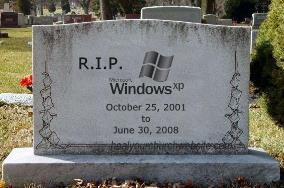
  • XP is dead – Linux community misses marketing opportunity

    RIP Windows XP - October 2001 to June 2008After today, Microsoft will discontinue sales of its Windows XP operating system to retailers and major computer makers; this despite protests lodged at InfoWorld’s ad-impaired Save XP petition page.

    Meanwhile, the world of Linux continues to overlook major marketing opportunities – this time missing a chance to dance on XP’s grave by not planning and then announcing releases for any and preferably ALL ‘distro-butions’ today.

    So what does this mean for your church and/or charity organization? For me it is just another reason why Software as a Service (SaaS) solutions such as Zoho and/or ThinkFree.

    Why? Because as long as you have a browser, and in many cases an up-to-date mobile phone with good data services, then you don’t have to worry about jumping through some of the potentially hazardous and most definately expensive flaming hoops required to ‘enjoy’ operating system paradigm shifts.

    For example, you can still get XP once you realize Vista will choke your current hardware platform, but only if you first buy Vista and then “downgrade” to XP (nothing like giving the customer what they want).

    Why bother?

    A comparative cornucopia of online office ’sweets’Instead, if your laypersons and/or church staff are running a variety of computers on a mix of Mac, Ubuntu, or even Windows 2000 systems, no problem. There are many tasty selections from today’s cornucopia of online office ‘sweets’ that offer collaboration capabilities that will not only allow everyone to work-n-play well together remotely, but will also save your budget from all the Advil required to deal with operating system update-induced migraines.

    That and think of the gas everyone will save when you can hold meetings via products such as Skype and collaborate on documents via Google Apps Education Edition; the later provided to registered non-profits with current 501(c)(3) status free-of-charge.

    Bottom line, quit thinking desktop and get that office-ware and associated operations into the collaborative web space.

  • How to set your system clock in Linux

    So once again, that infernal Daylight saving time thingie bothers us by automatically setting, or perhaps not setting our system clocks on your Ubuntu, Red Hat, Fedora, Debian, Knoppix, or Suse install either an hour ahead, or remaining an hour late!

    the official U.S. timeHere are two simple command lines to synchronize your Linux system clock with the atomic clocks offered by the National Institute of Standards and Technology … hmmmm … atomic energy ….

    … sorry, got distracted with all that power at my disposal. So if you have access to the root account of your server, or better yet – have access to the guy who has access to the root account, here’s all you need to know:

    /usr/sbin/ntpdate -b -s time-a.nist.gov
    /sbin/hwclock --systohc --utc

    Now if you don’t live in the EasternTime Zone as I do, then you’re NOT going to want time-a.nist.gov as your time server. Instead, go to the NIST Internet Time Service page and pick the server that best matches your timezone and daylight savings situation.

    While you’re at it, you can also modify the /etc/rc.d/rc.local file to include the above commands – or at least the first command so it is executed when the server reboots.

    For more gory details on this topic, here is a great little page called Linux Tips – Linux, Clocks, and Time to get ya going in the right place … at the right time (sorry, couldn’t resist the corn-ball humor opportunity).

    Oh and for those in the U.S. who need to set the clock on the VCR (I know some of you still have them … blinking) and/or microwave oven to the correct time, there’s always the human readable the official U.S. time web page, also offered by NIST.

    Like your mileage, your timezone may vary … and I promise … no more ‘geek speak’ for the rest of the week.

  • How to secure your church’s dedicated Linux server

    This post is dedicated to all of you running your church’s website in the choir robe closet, or who have been graced with a generous and geeky member who has taken advantage of one of those cheap, unmanaged dedicated server deals advertised at places like WebHostingTalk:

    As the author plainly states, “This list is not comprehensive, nor does [he] take any responsibility for any harm that may come to your server if you use any of these commands.”

    Emphasis mine, that said, I found this a very good “quick reference” for those of you thinking about running or leasing your own Linux/Apache server. Especially for those blissfully ignorant enough to think it can be done simply by installing ubuntu on an old machine some donated as a tax-write off.

    Using Richy’s sobering tips, I went out and found how-to articles on each of these “dedicated Linux server for dummies” points – just so you could realize just how much work goes into “hardening Linux servers for dummies:”

    Now if this hasn’t scared you out of running your own server in the basement of your church or charity (and I’m hoping it does), then may suggest, rather … I COMMAND YOU to go buy and then read “Hacking Linux Exposed” before you take the dive.

    Seriously, consider the costs of trying to save money by running a box out of an unused closet or corner of your church. It may be more expensive in time and lost off data than you think. At least think of all the work that goes into hardening Linux web servers these days.

    How ’bout some of you other pros out there? I’m sure I’ve missed something. Leave a comment, we’ll add to the list.