Month: April 2008

  • Spring Cleaning, or time for a HealYourChurchWebsite do-over.

    Time for Heal Your Church Website to upgrade her browsing experience.The birds are singing, the flowers are blooming and WordPress 2.5 has been ‘in the wild’ for a couple of weeks. These factors, and the fact that my own blog is getting a bit crufty has me thinking it is time for yet another Heal Your Church Website do-over. That and I’ve been getting some ‘love notes’ that either fall into the category “how do I get started” or “you reviewed my site, so here is why your blog sucks.” I figure success is the best response, so here’s my initial game plan – thinking out loud as some of you may be in a similar situation of having to freshen up your church and/or charity website.

    1. Research

      I’ve already got a good idea of what I want to say, so mostly in this case I need study what resonates via the results I’ve been collecting via Google Analytics and FeedBurner, including:

      • keywords,
      • popular pages,
      • unusual usages of feeds,
      • any patterns in exit pages,
      • any patterns in entry pages,
      • and any patterns in people navigating into the site.

      I’ll couple this with looking over my error logs to see where people are stumbling the most. I think looking over some of the nicer ‘love notes’ may also be useful as they’re often requests for information I’ve published before.

    2. Plan and ‘objectifry’

      Meaning, based on the research above – along with day-to-day experiences, enumerate a set of requirements and objectives mostly based on needs, though since it is a personal blog, some wants too.

    3. Backup everything

      I need to not only save everything, but also insure I have an effective restoration/rollback plan in the off-chance things go horribly wrong (like I don’t have the right version of PHP or MySQL, etc …).

    4. Re-factor my categories

      Some of these old categories are crufty and unintelligible. They need my healin’ sooner than later and I’m thinking probably better to do it before the upgrade than after – though the new version of WordPress may have some features and/or plug-ins that make such a migration less painful. I’ll have to research that.

    5. Draw out a new template

      First on paper, then later using PhotoShop or PhotoImpact. Don’t get me wrong, I still like the whole Byzantine Cross on the blue domes of Orthodox Churches at Santorini, and may have an opportunity soon to be there – but overall the current theme is beginning to wear. That and it’s just too darn dark.

    6. Upgrade to WordPress 2.5

      Knowing already that this step will likely include the following plugins:

      I already use some of the above, I also know others come ‘bundled’ with the WordPress 2.5 release. Also a word of warning to WordPress “n00bz” – I’ve got a very good idea of what I’m delivering here content-wise, so any and/or all of the selections above are based upon those needs; rather than those ‘neato-keen‘ inspirations.

    7. Update the Theme

      Either generate from scratch and/or adopt and/or modify an existing WordPress theme that is

      • A wider fixed or fluid width
      • Widget ready
      • Has an options page
      • 2 or 3 columns
      • Right sidebar
      • Brighter colors

      I also need to code the theme (or write a plugin) so the last 2 or 3 posts display in full, the next 8 or 10 as excerpts.

    8. Test the site

      • first for functional soundness (technical testing)
      • then to see if it meets my goals/objectives (use cases)
    9. Clean up crufty content

      Go through older articles, eliminating/archiving stuff that’s no longer relevant and cleaning-up some that got hammered by moving from MT 1.0 through 3.0 then to WP 1.5 through to 2.5.

    10. Sit back and enjoy

      Create numerous annoying posts about what pains I suffered executing on the above game plan.

    So here’s your chance kids – got something you’d like to see done differently here? Speak up, now’s your chance.

    Oh and if I get enough love notes and/or comments on this topic, I’ll discuss answers in a fun follow-up post. So be sure to make your notes to me pithy and quotable (and don’t forget the link to your site !-).

  • Jakob Nielsen: Four Bad Designs and a 403 error to boot!

    What could be more ironic than to receive an email from Jakob Nielsen’s Alertbox on the topic of “Bad content, bad links, bad navigation, bad category pages” that links to a page that throws a 403, permission access denied page?-) Fortunately for you, I got screenshots, followed by some commentary on the article once the good folks at UseIt.com realized the error or their ways.

    First the email:

    Jakob Nilesen’s altert box email of 14-Apr-08

    Then the broken page link:

    Jakob Nilesen’s broken page link to 4 bad design

    Now onto the article …

    Yeah, I know, I’ve offered similar errors before – but then again, I’m a one man operation who posts whenever I feel I have something compelling to discuss. In this case, I think the content of Nielsen’s article “Four Bad Designs,” once liberated from the restrictions of an errant and untested .htaccess file and/or mod_apache directive provides both a compelling and worthy discussion of:

    Bad content, bad links, bad navigation, bad category pages… which is worst for business? In these examples, bad content takes the prize for costing the company the most money.

    Bad Content: Jazz at Lincoln Center

    Here, the good Dr. poses the age-old question “where’s the beef!?” And while his point is about scant detail about an upcoming performer, I could say the same applies to church websites when announcing guest speakers and/or special events.

    Links without Information Scent: New York Times

    If Jakob Nielsen were writing about church websites, he’d perhaps pose the question ‘Who’d want to click on “Next Sermon in Tithing”?

    In other words, give your links some “what’s in it for the reader” type jazz.

    Interior Splash Pages: Christopher Norman Chocolates

    This is directed at the growing number of church and/or charity web masters who think for some reason it is compelling and cool to embed huge, bandwidth consuming Flash-based slide shows for each and every category of your website.

    I think Nielsen sums up my opinion of this sin when he opines:

    Splash screens are bad enough when they sit in front of a site’s real homepage, but at least users encounter those screens only once. With a splash screen for every category, users have to click through many extra pages to see all the products.

    Amen, preach it brother!

    Metaphor Run Amok: Specialized Bicycles

    Dr. Nielsen’s point also applies to gizmos, gadgets, and special effects that continue to plague a plethora of parishioner inspired web pages.

    The Business Cost of Bad Design

    Two words: empty pews.

    Meaning, the general reaction by first time visitors to the above design issues is that they become one time, never again visitors.

    Think about that the next time someone comes to you with a a website idea that is more style than substance. Better yet, send a link to this article to your pastor and youth minister – so the next time they hit you up with a “great idea” you can remind them of that “4 bad designs” article link you sent them back on April 14, 2008.

  • How to quickly check your error logs for oddities

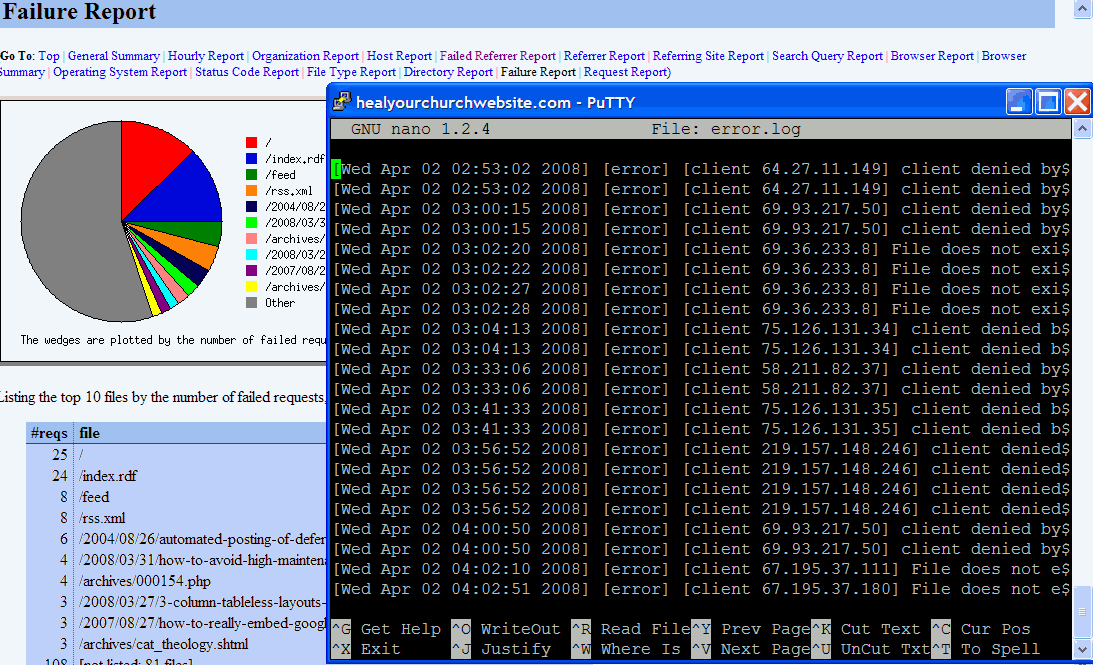
     Sample of error logs and stats screensWith more church webmasters taking advantage of free, one-click installs (e.g. WordPress, Drupal, etc …) provided by inexpensive web hosting solutions, I figure it is time to provide a quick tutorial on how to harvest useful operational, user and security information the error logs using a variety of commands already at your disposal – free.

    I have error logs” some ask? To which my response is: “Probably, did you ask your host provider?

    Once you do find your error log file(s) – and most reputable hosts do provide them, usually through whatever host management application they provide (e.g. CPanel, Plesk, etc …) – then it’s time to answer the not asked often enough question “what do I do with them?

    Below is ny semi-definitive, and most certainly emphatic response:

    Resolve 404 errors

    404 is an HTTP response by your website’s server to a user-browser request to a file not found. This information is tracked in your access logs, but usually and often is included in your error logs.

    Here is why this is important to you – reducing 404 errors:

    • reduces user frustration;
    • points out bugs in your configuration;
    • saves you gobs and gobs of disk space;
    • points out potential vulnerabilities; and
    • once fixed, improves available user bandwidth.

    First thing you need to do is figure out how your error log works, and what type of verbose messages it may or may not offer.

    Then you need to make sure you have enough SSH access (e.g. via tools like Putty) to run the Linux commands grep, egrep, tail, more and perl against your error logs.

    Short digression: Yes folks, for today’s lesson I’m assuming you are hosting on some form of a *nix platform – though one can actually perform the following functions on a Windows-based machine applying command line UnxUtils against a long file either on a server or FTP’d to your home computer.

    Getting back to today’s lesson, here’s a simple example of what command-line I would enter if I wanted to see the last 50 lines of my error log:

    tail -50 error.log

    This quickly gives me insight on the type of error messages available. For the ubiquitous 404 error – which in my world is recorded in the error log file in plain English as “File does not exist” … your mileage will likely vary. With this key phrase in mind, I can now enter the command:

    grep "File does not exist" -i error_log

    Parsing logs into human-readable columns

    Problem is, I probably get more information than I want. What I’m simply after is which IP is getting the error, how often, and on what page request. For that, I “pipe” the output from the “grep” command through Perl – which in turn parses the results by spaces.

    grep "File does not exist" -i error_log | perl -l -a -n -e 'print $F[7]," ",$F[12]'

    Counting the spaces, the IP address in my logs hits at position 7, the errant file at column 12. You’ll likely have to figit with these to get it to produce the results you’re interested in.

    Once you do, my suggestion is directing these results into a temporary file you can visit for later use. For example:

    grep "File does not exist" -i error_log | perl -l -a -n -e 'print $F[7]," ",$F[12]' > 404errors.05mar08.txt

    Once you see where the errors are occurring, usually its just a matter of creating a more comprehensive 404 request manager, and/or replacing a file that got accidentally deleted.

    Excluding certain entries

    One last trick – let’s say you’ve fixed two of your errant files, and now want to see what remains in your error log.

    Try this one on for size:

    grep "File does not exist" -i error_log | egrep "\/(file1\.html|file2\.png)" -i -v | perl -l -a -n -e 'print $F[7]," ",$F[12]' > 404errors.05mar08.txt

    Note that I used egrep instead of grep, the ‘e’ standing for regular ‘e’xpressions, which when coupled with the “exclude” operator of ‘-v’, provides us with a list of errant files excluding those you just fixed.

    Closing ‘args’

    I realize that this may sound like ‘ancient geek’ to some. If that’s the case, then my advice is ask your hosting provider what type of error stats may be available through a pre-packaged application that many hosts provide such as “awstats” and/or “webalizer.” They don’t provide the ‘gory details’ one gets with the command line options above, but it’s good enough.

    Yet for those who dare, there are additional benefits to learning how to parse your own error logs – for example, scheduling the above commands (that pipe into a file) in your cron table so you can quickly identify broken files and/or interesting inquiries from bad boys using a variety of anonymous proxy services and/or browsers in an attempt to set-up my blog as their own personal spam-bay.

    You can also save money, support calls, and/or bandwidth by identifying missing pages, images and other fixable omissions.

    For them, I have some .htaccess hacks awaiting them based on the useful input they provided me via my personally parsed error log.